Assignments, quizzes and grades
Open an assignment (student view)
What students see when you share an exercise, and how they submit it.
This is what your students see after you share an exercise with the class.
The student opens the class and clicks Assignments. Everything you have shared is listed with its due date and score.
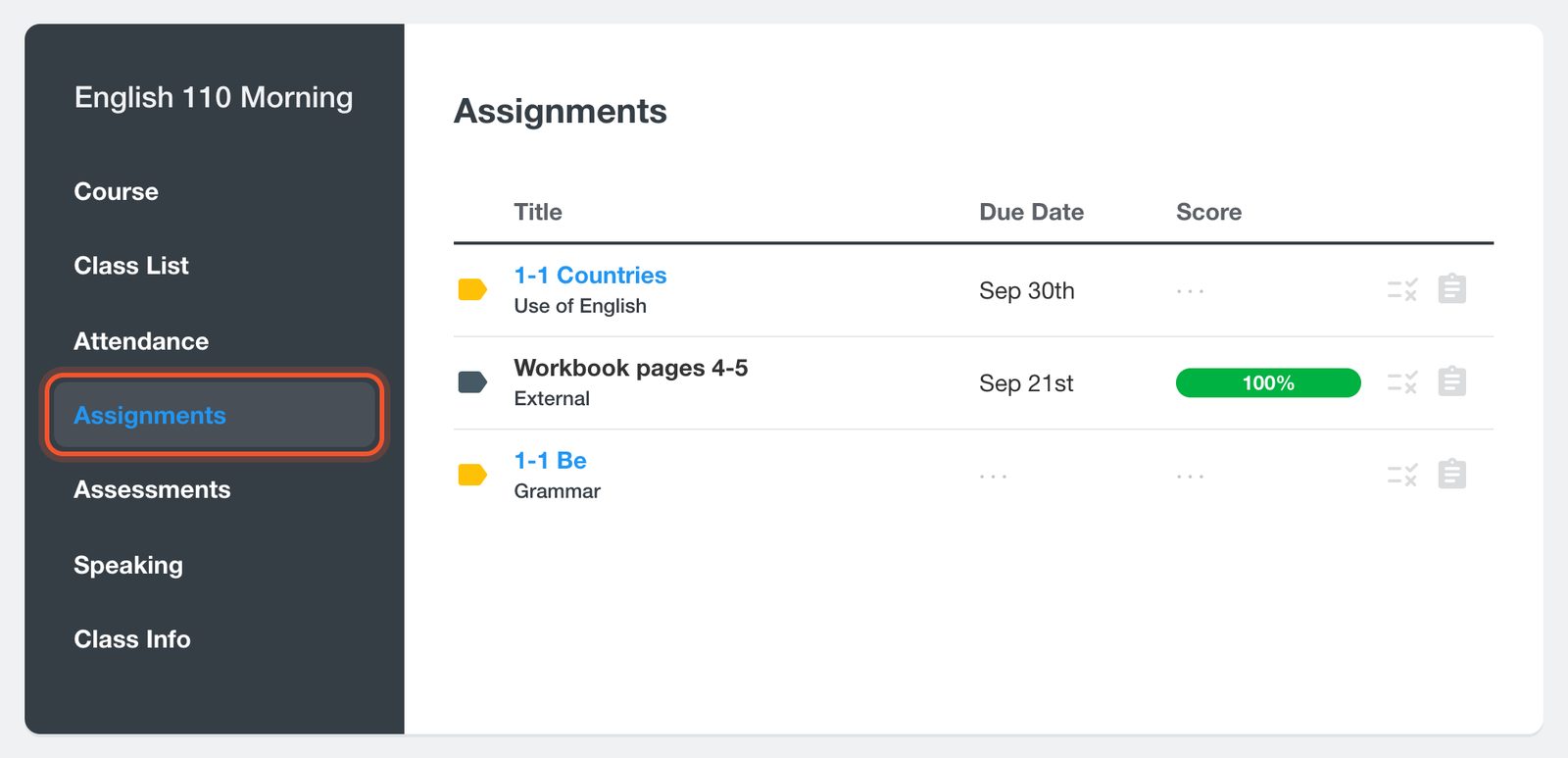
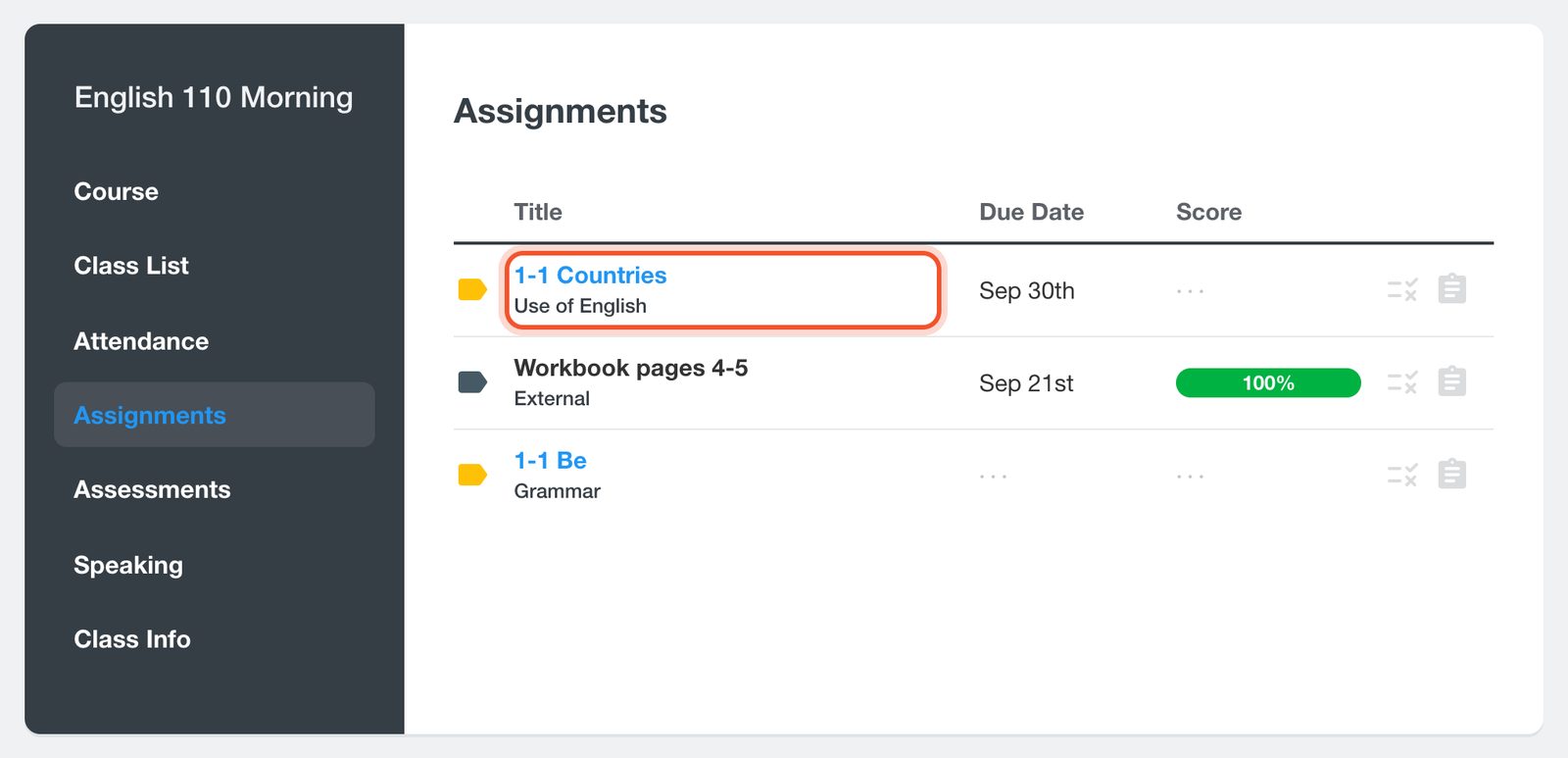
The student clicks the assignment title.
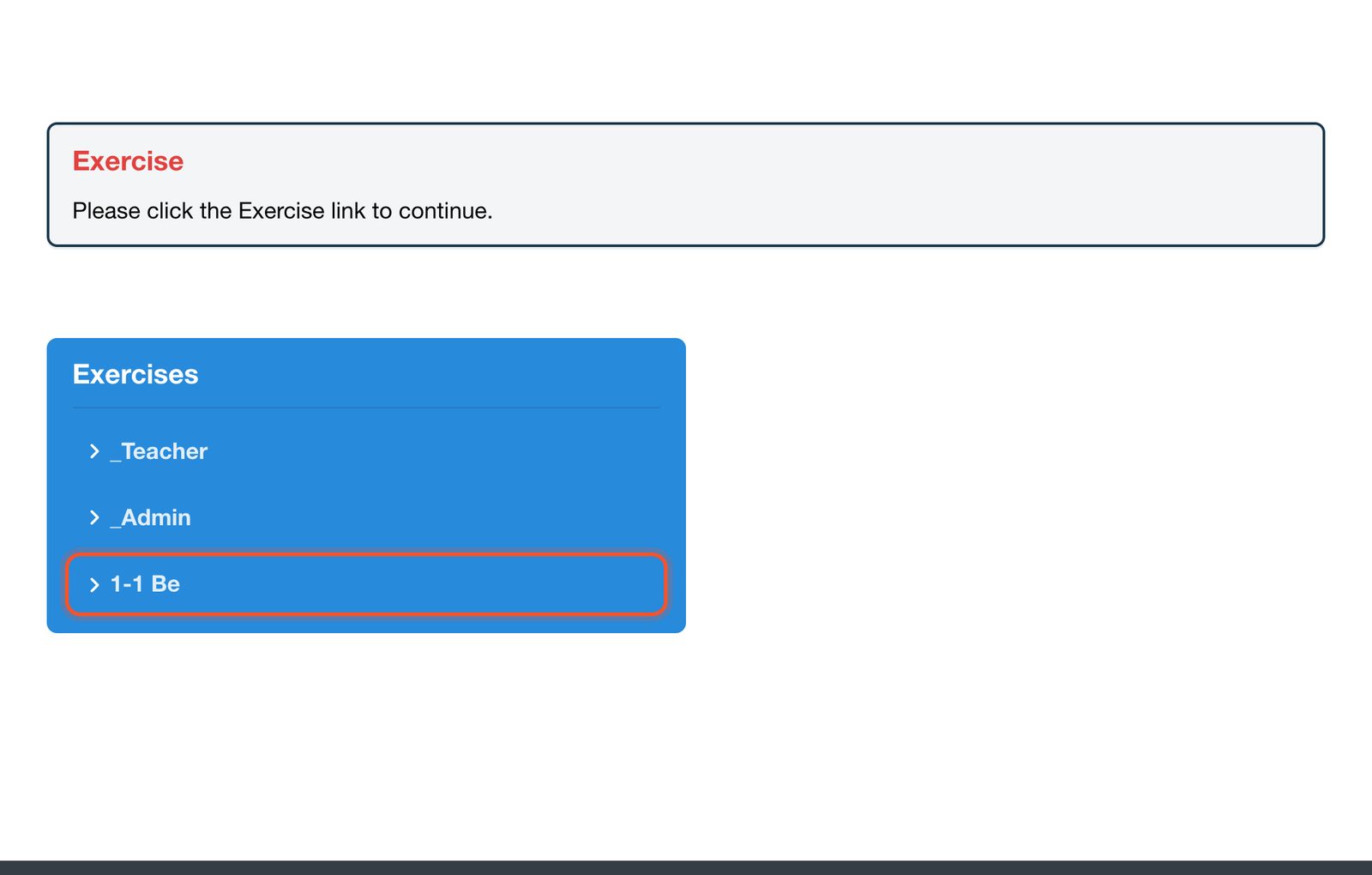
The lesson opens at its exercises. The student clicks the exercise named in the assignment.
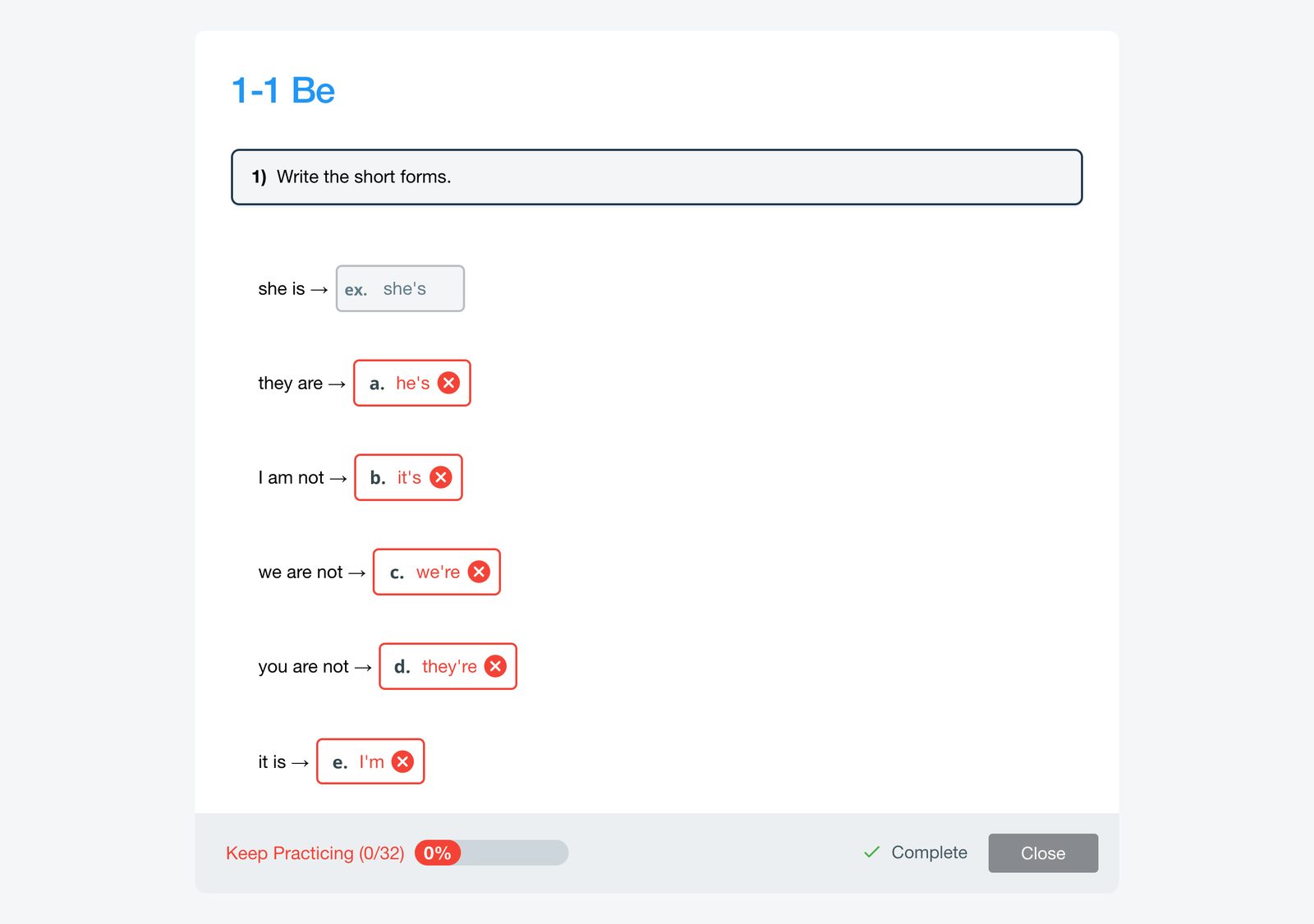
The exercise opens over the lesson, and the student answers the questions.
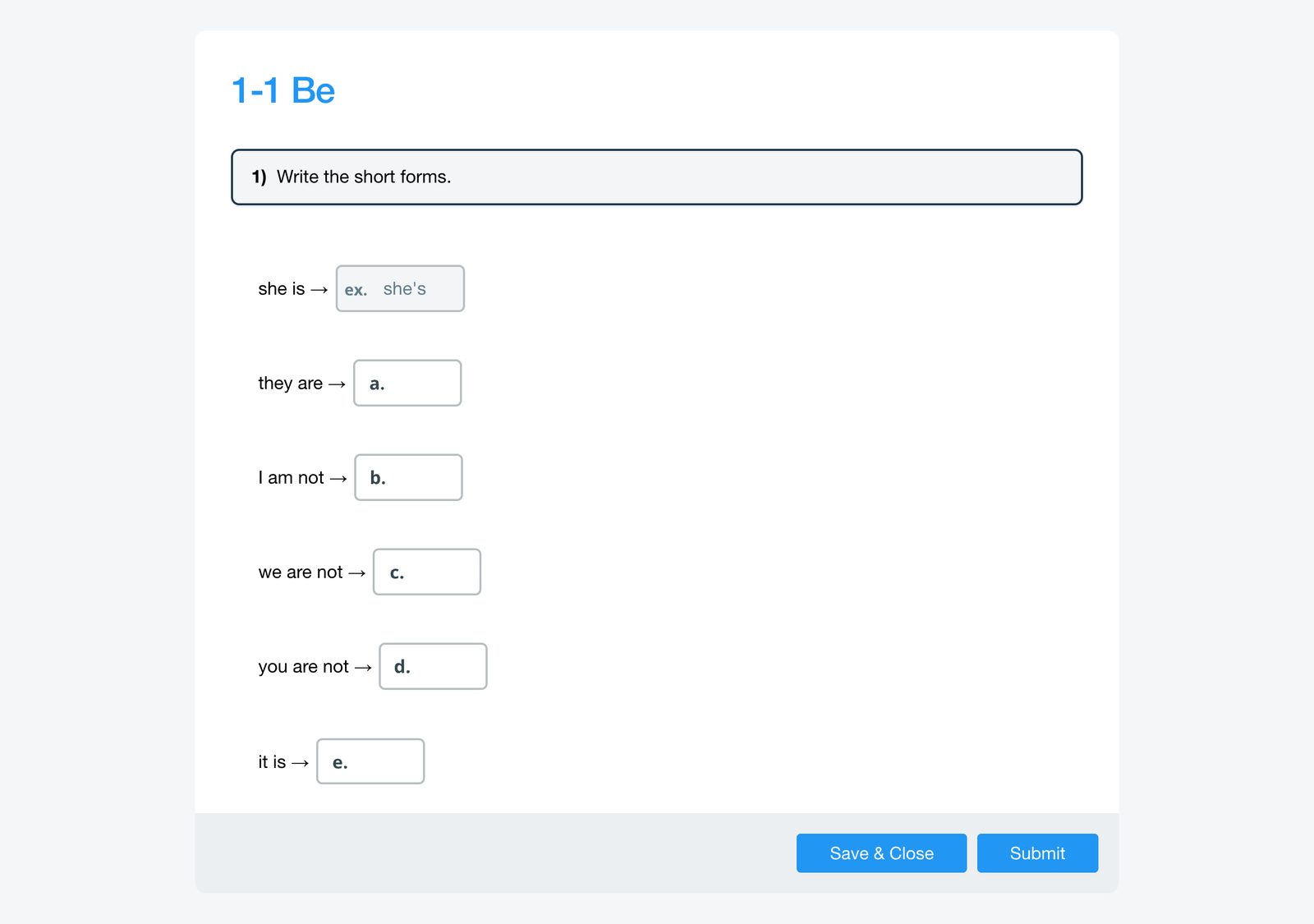
Save & Close keeps the answers to finish later. Submit sends the work to you and marks it.
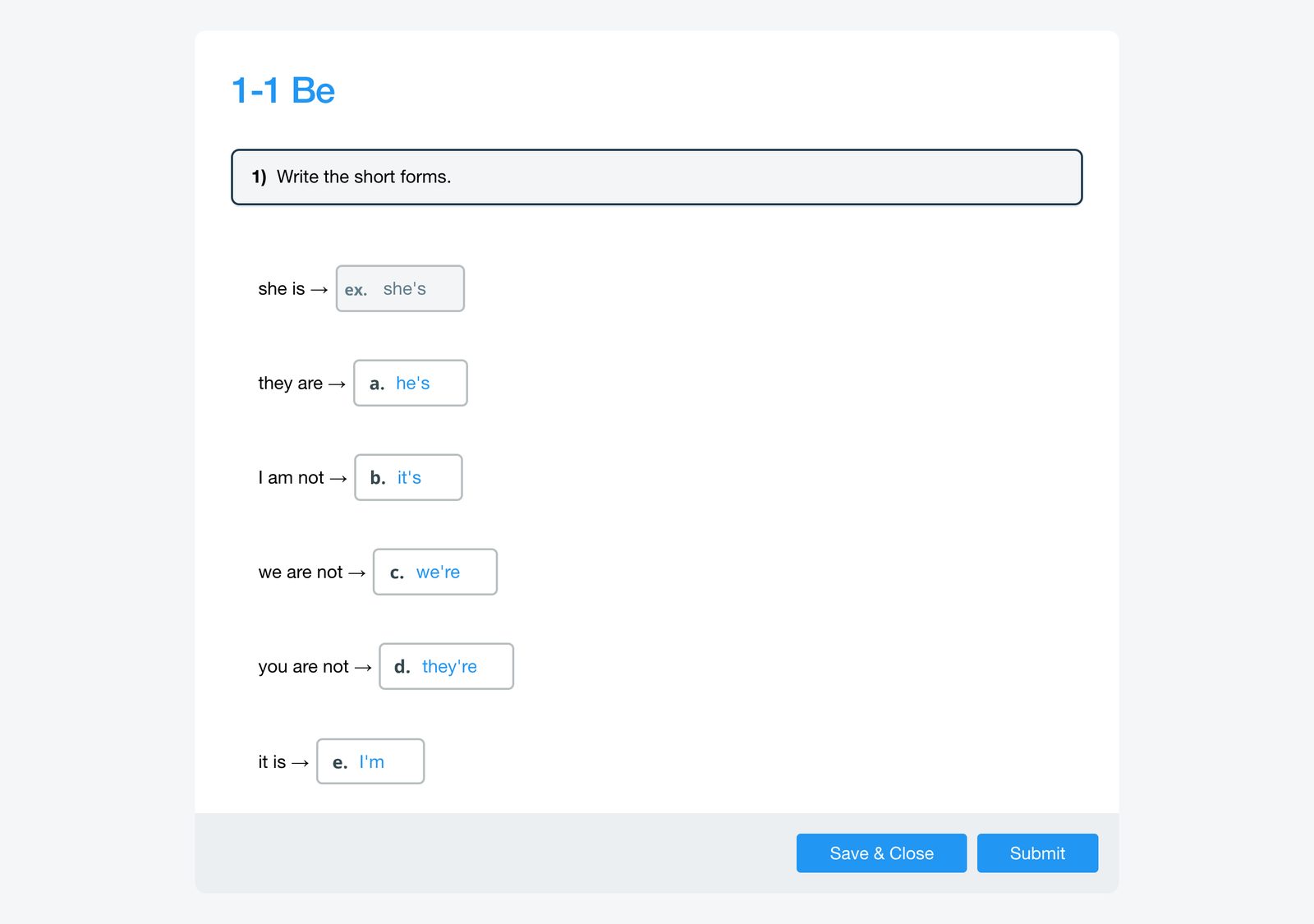
Once submitted, the answers are marked and the score goes to your gradebook.