
Assignments, quizzes and grades
Show students the correct answers
Turn on Show Answers so students can check the right answers after they submit an assignment or quiz.
When students submit an exercise, it marks itself and they can see which of their answers were right and wrong. The correct answers stay hidden until you show them, so you can decide when students get to check their work.
For an assignment
Open your class and click Assignments.
On the assignment's row, click the Show Answers switch at the end of the row. The switch is not shown on phone-size screens, so use a computer or tablet.
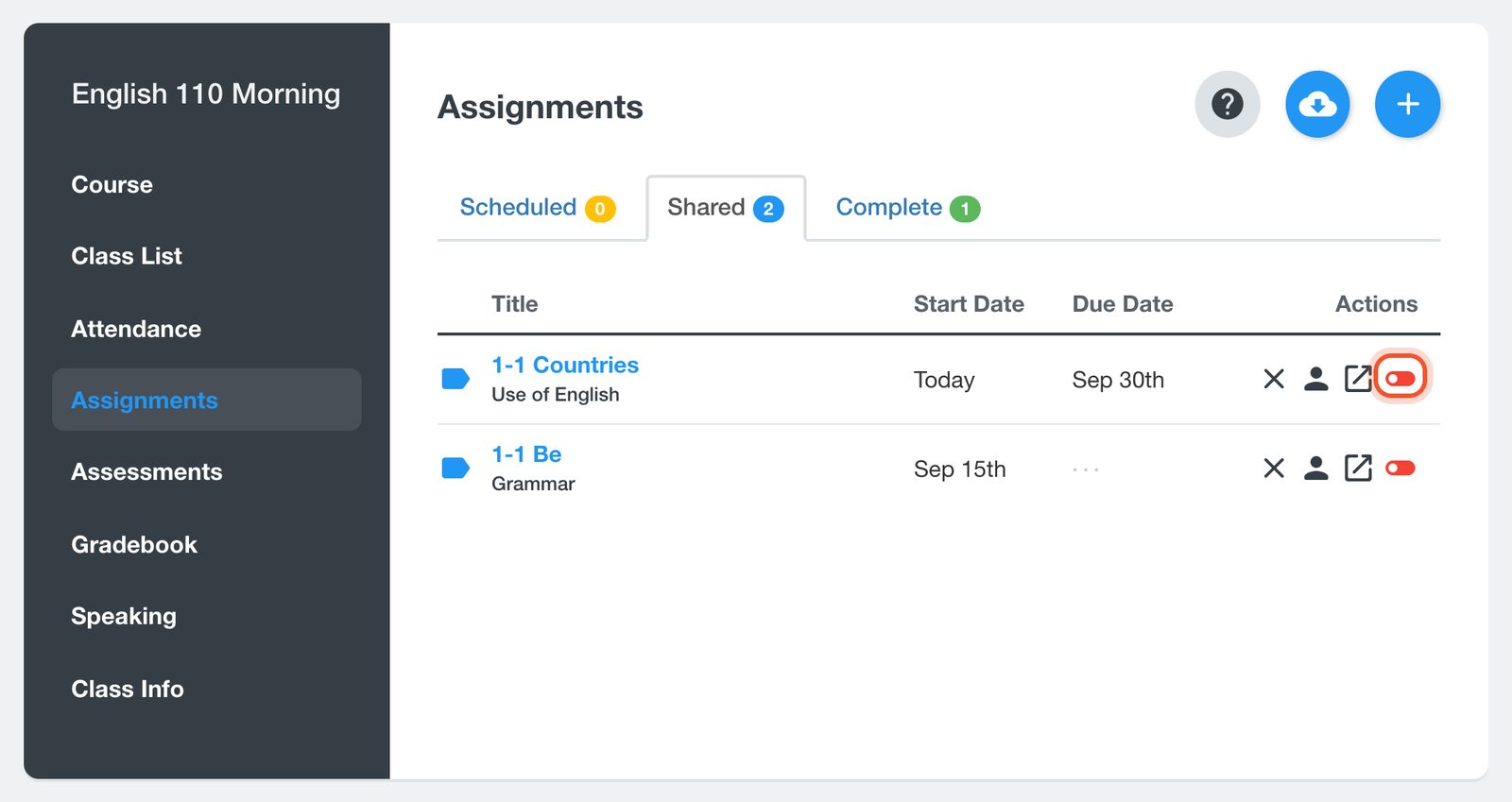
Students who have submitted the exercise now see the correct answer beside each question they got wrong. To hide the answers again, click the same switch, now labelled Hide Answers.
For a quiz
Open your class and click Assessments.
On the quiz's row, click the Show Answers switch.
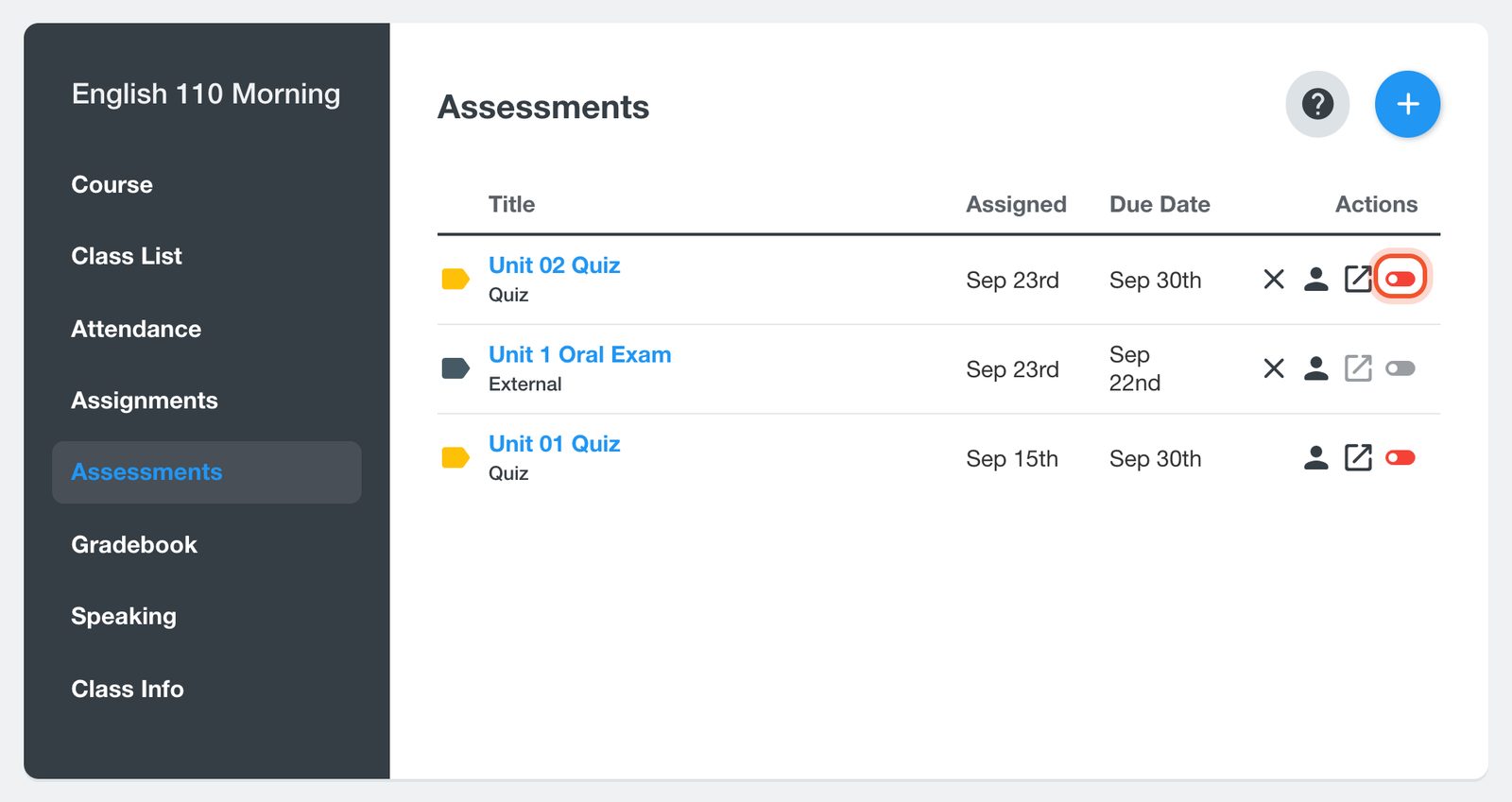
Students who have finished the quiz can open it again from its Results on their Assessments page to review it. To hide it again, click the switch and then Yes.
Exams do not have this switch. It shows as disabled on an exam's row.
Students only see answers for work they have submitted. Anyone still working on the assignment or quiz does not see them.


