
Assignments, quizzes and grades
Share an exercise with your class
Send an exercise from a lesson or from the Assignments page, with an optional due date and message.
You can share an exercise while you teach a lesson, or plan ahead from the Assignments page. Exercises mark themselves when students submit them.
From a lesson
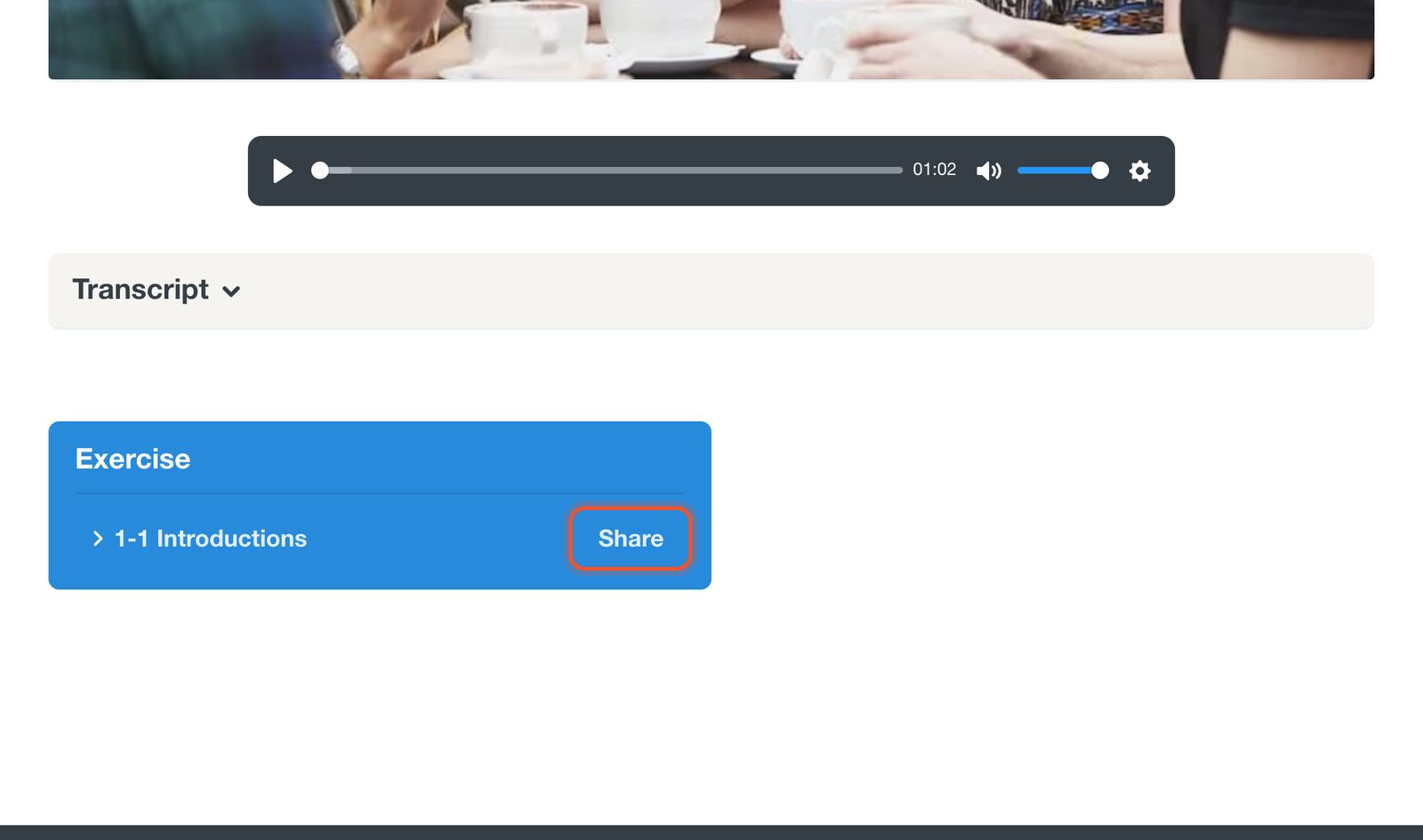
Scroll to the Exercise box at the bottom of the lesson and click Share beside the exercise.
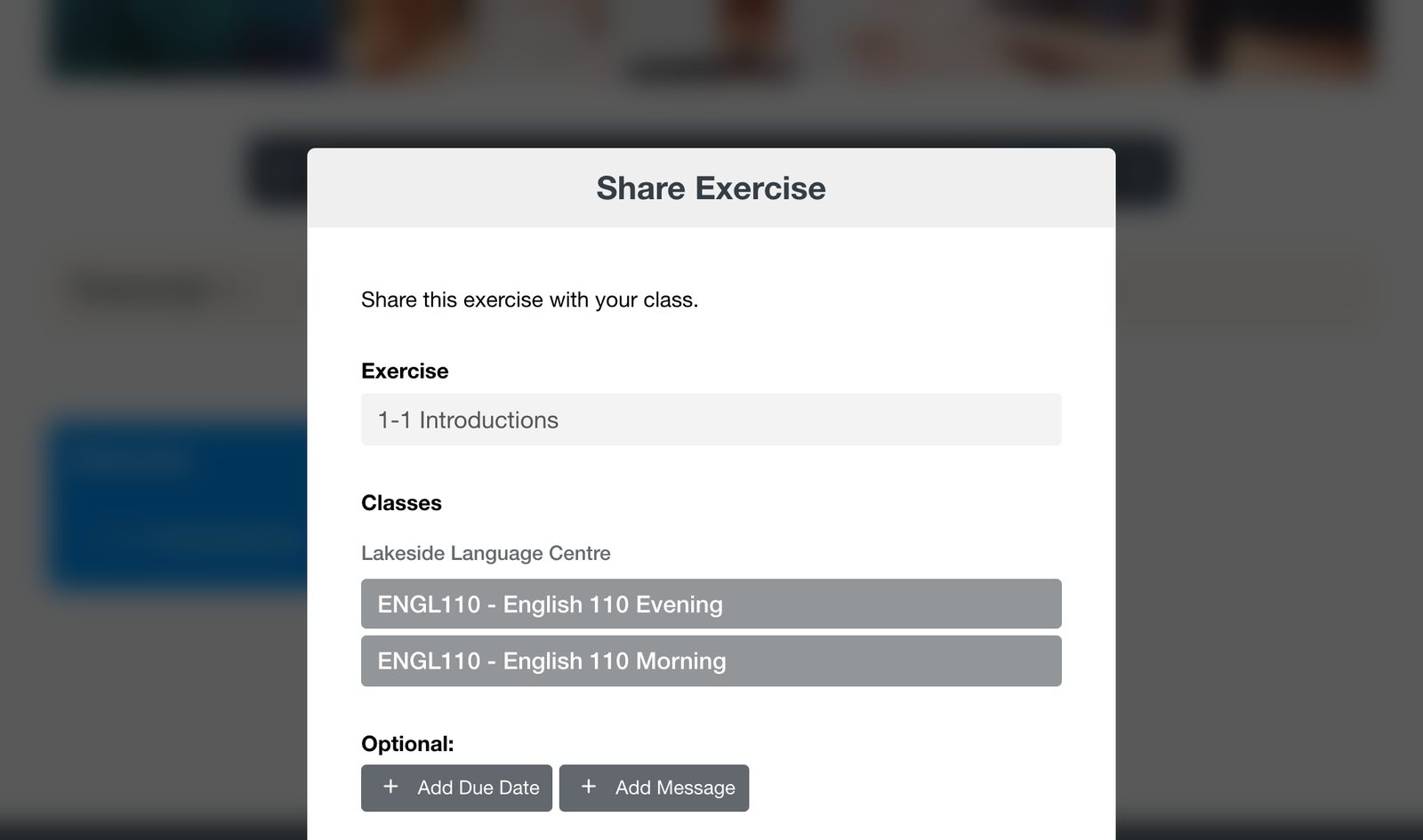
Choose the class, add a due date or message if you want to, and click Send.
From the Assignments page
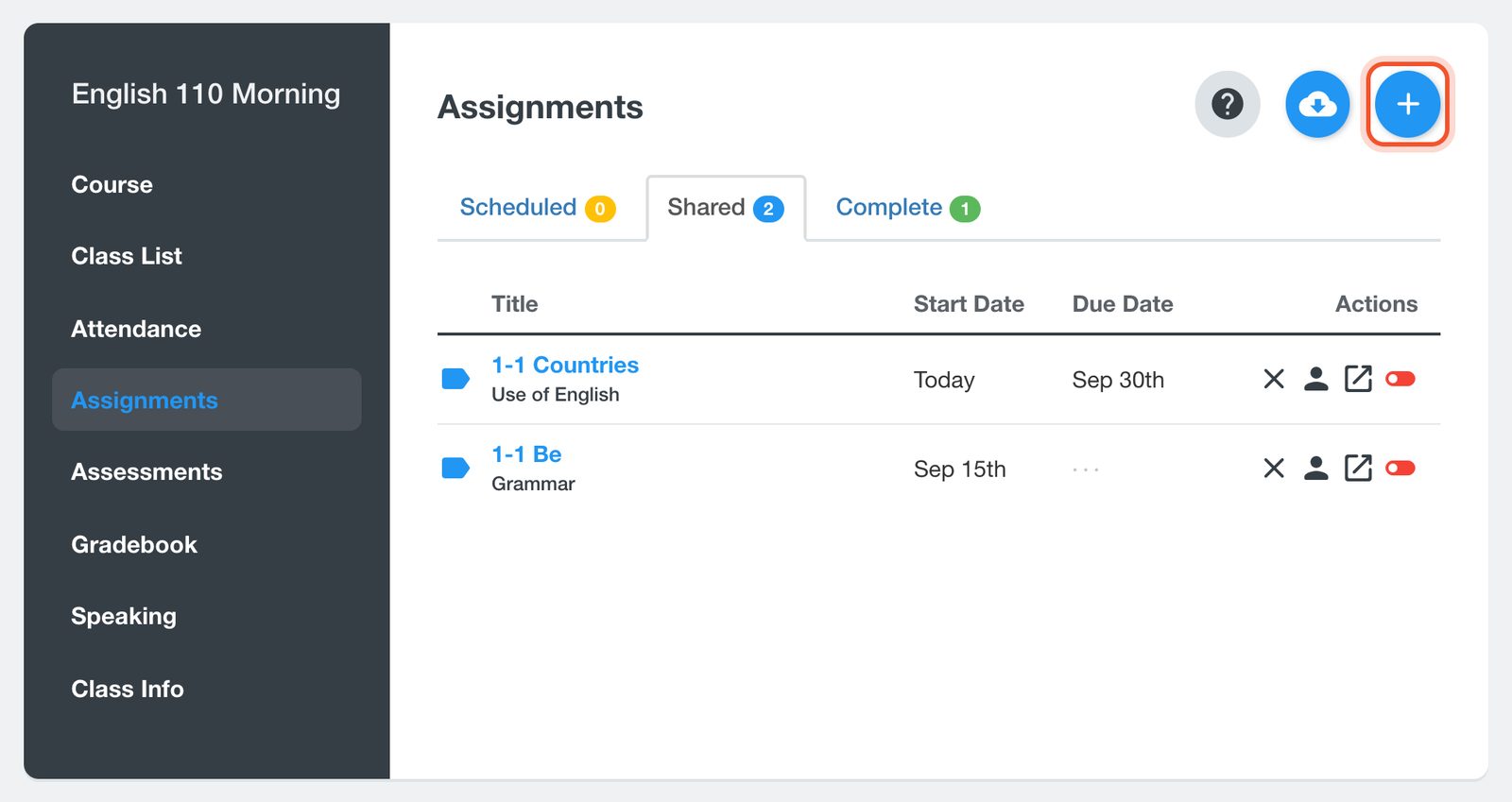
Open your class, click Assignments, then click the + button.
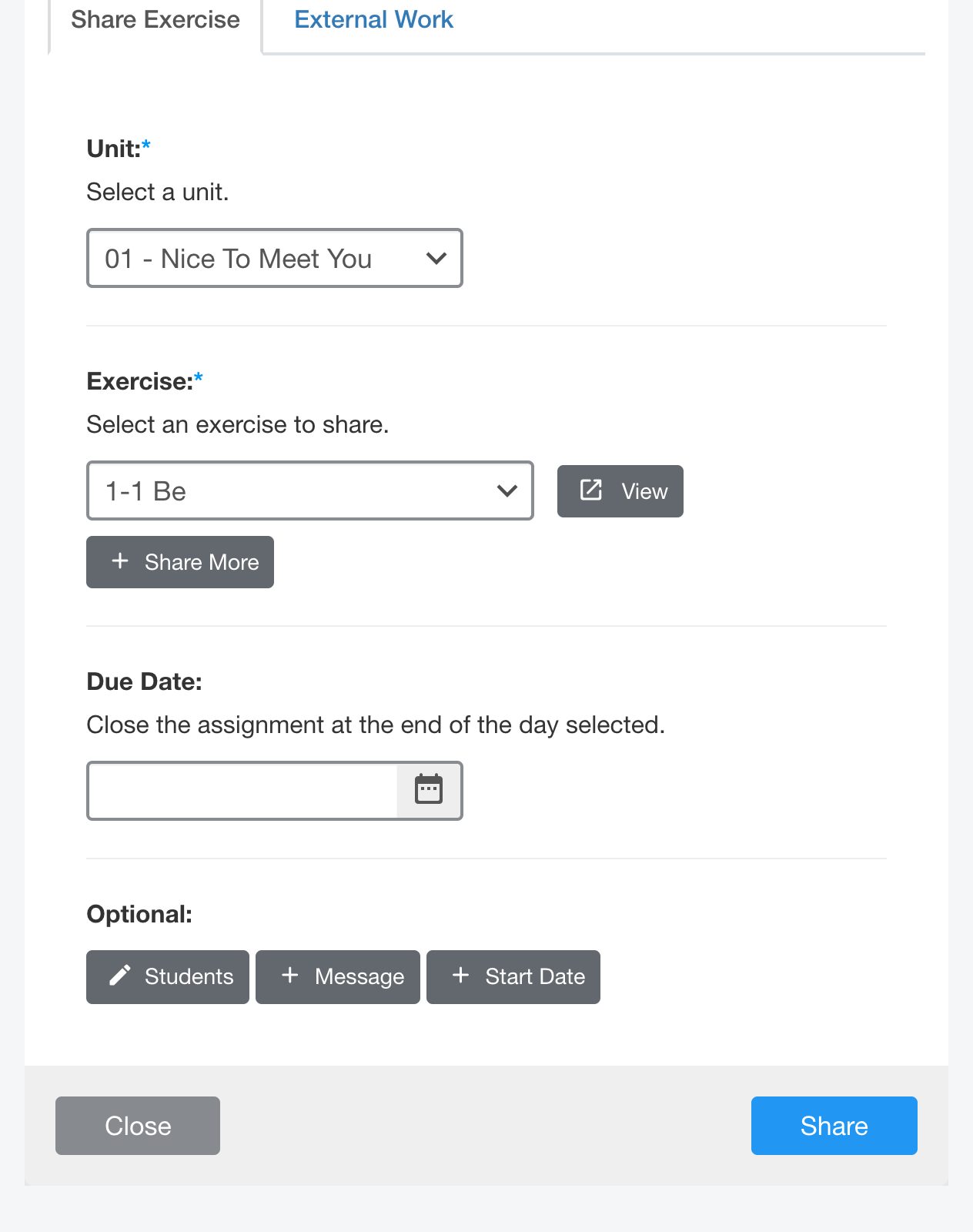
On the Share Exercise tab, choose the Unit, then the Exercise.
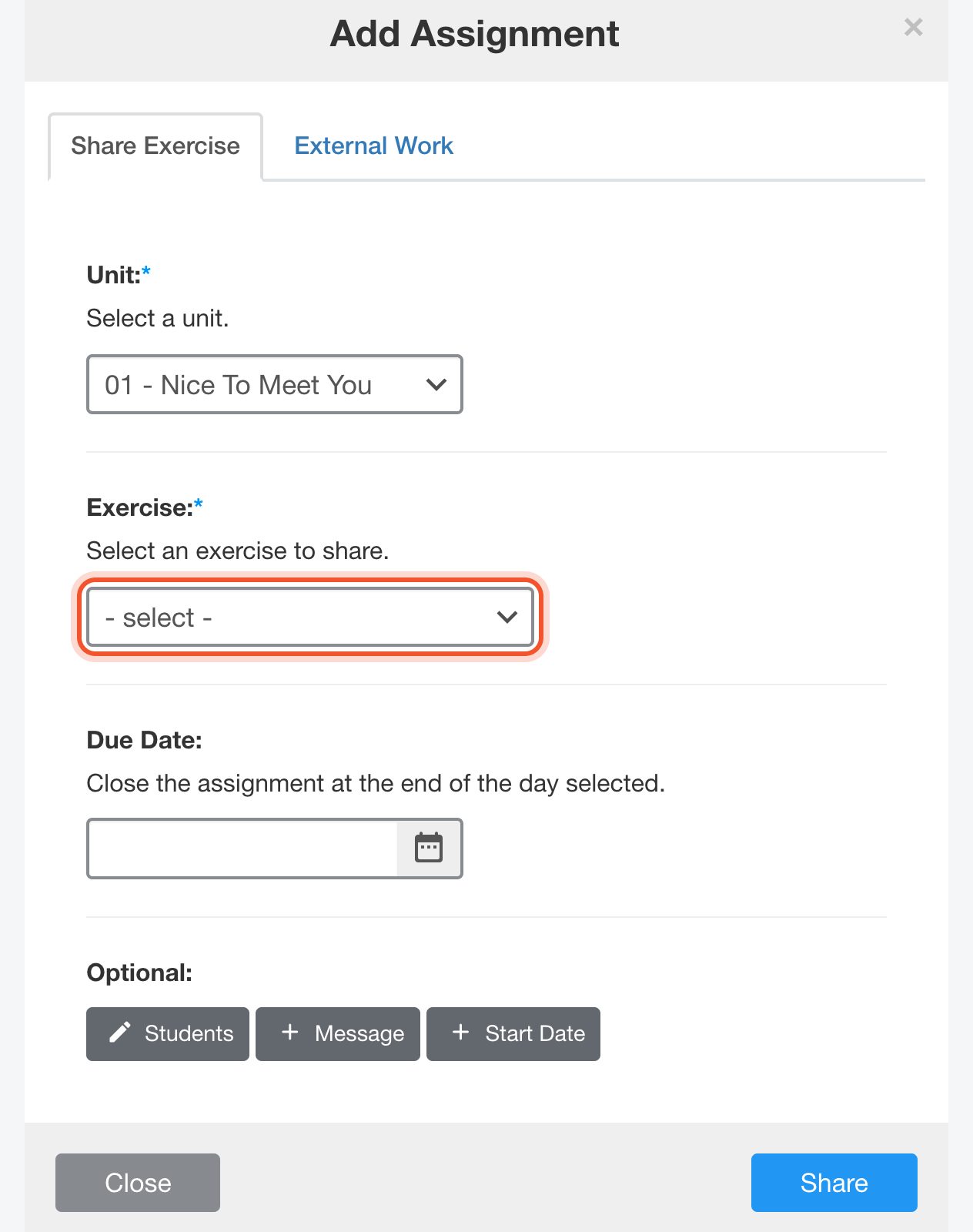
Set a Due Date if the work should close on a certain day. Under Optional, you can choose which Students get it, add a Message or set a Start Date. Click Share.
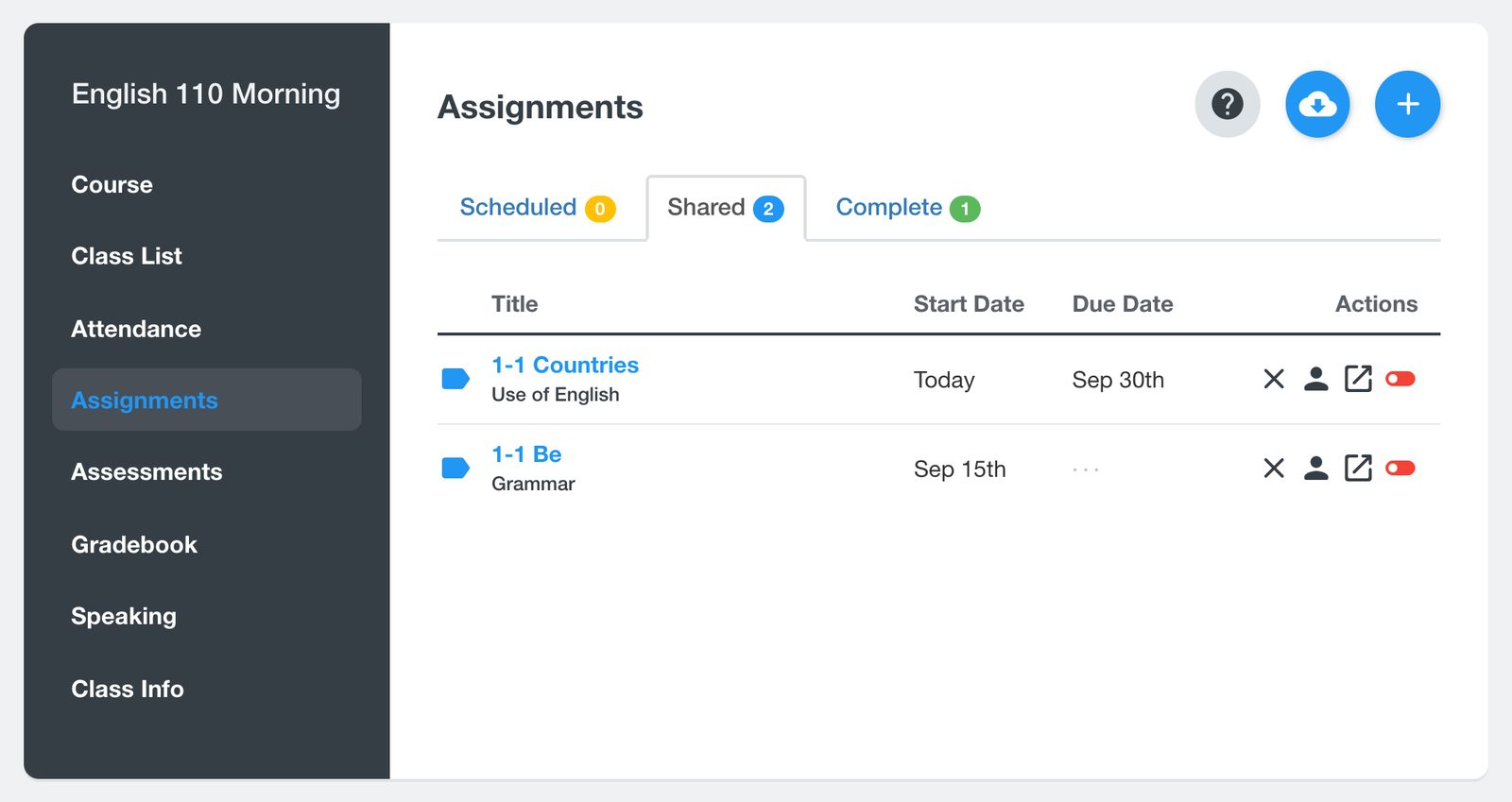
The exercise appears on the Shared tab. Scheduled work waits on the Scheduled tab until its start date.
To record marks for work done on paper, use the External Work tab in the same window.


