
Placement and testing
Run a placement test
Create a placement group, share the test with new students, then place them in classes from the results.
A placement group runs one placement test for an intake of students, collects their results and lets you put each student in the right class.
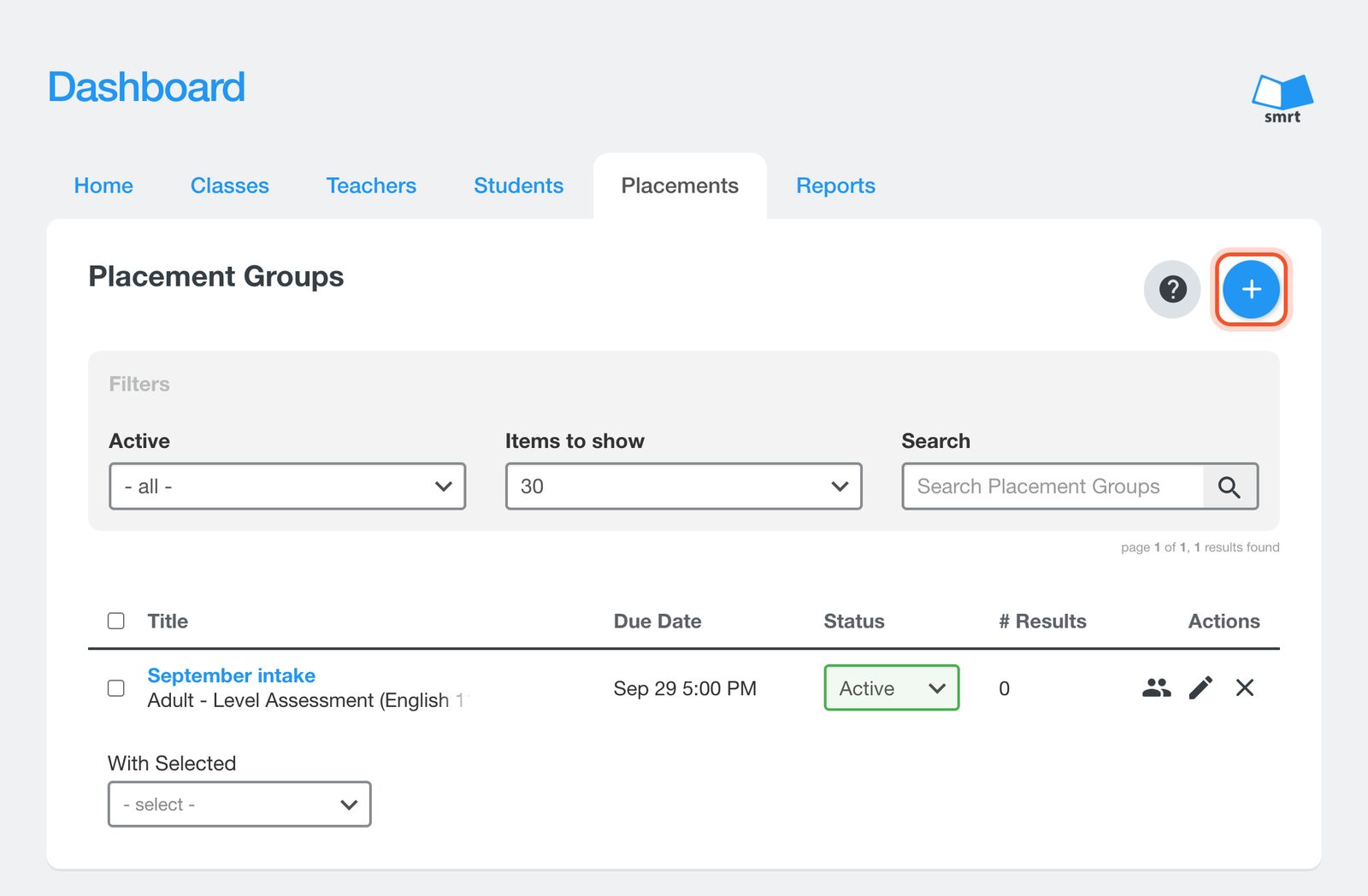
Open the Dashboard and click Placements. Click the Add Placement Group button.
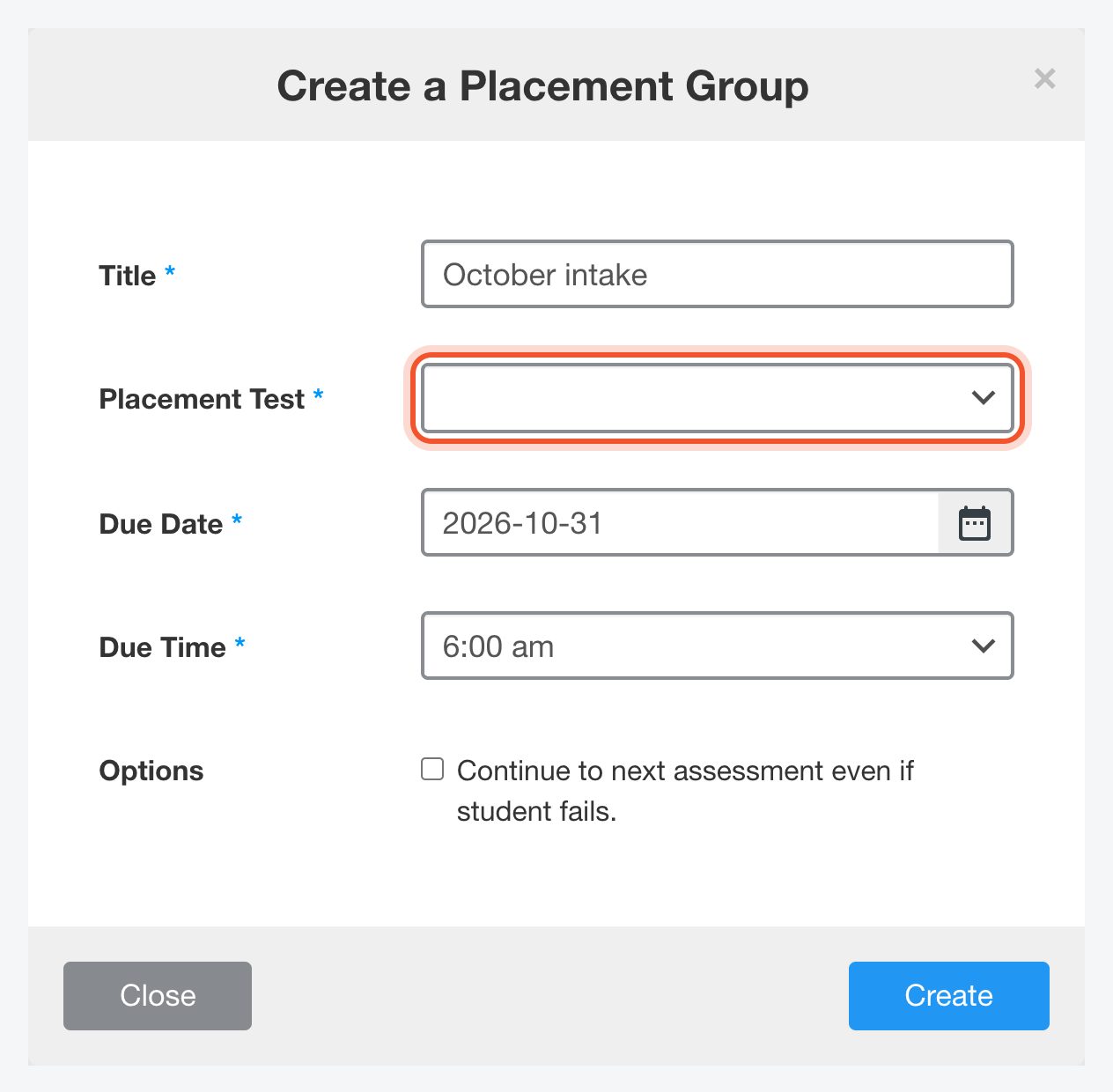
Give the group a Title, choose the Placement Test and set the Due Date and Due Time. Tick the option under Options if students should continue to the next assessment even when they do not pass one.
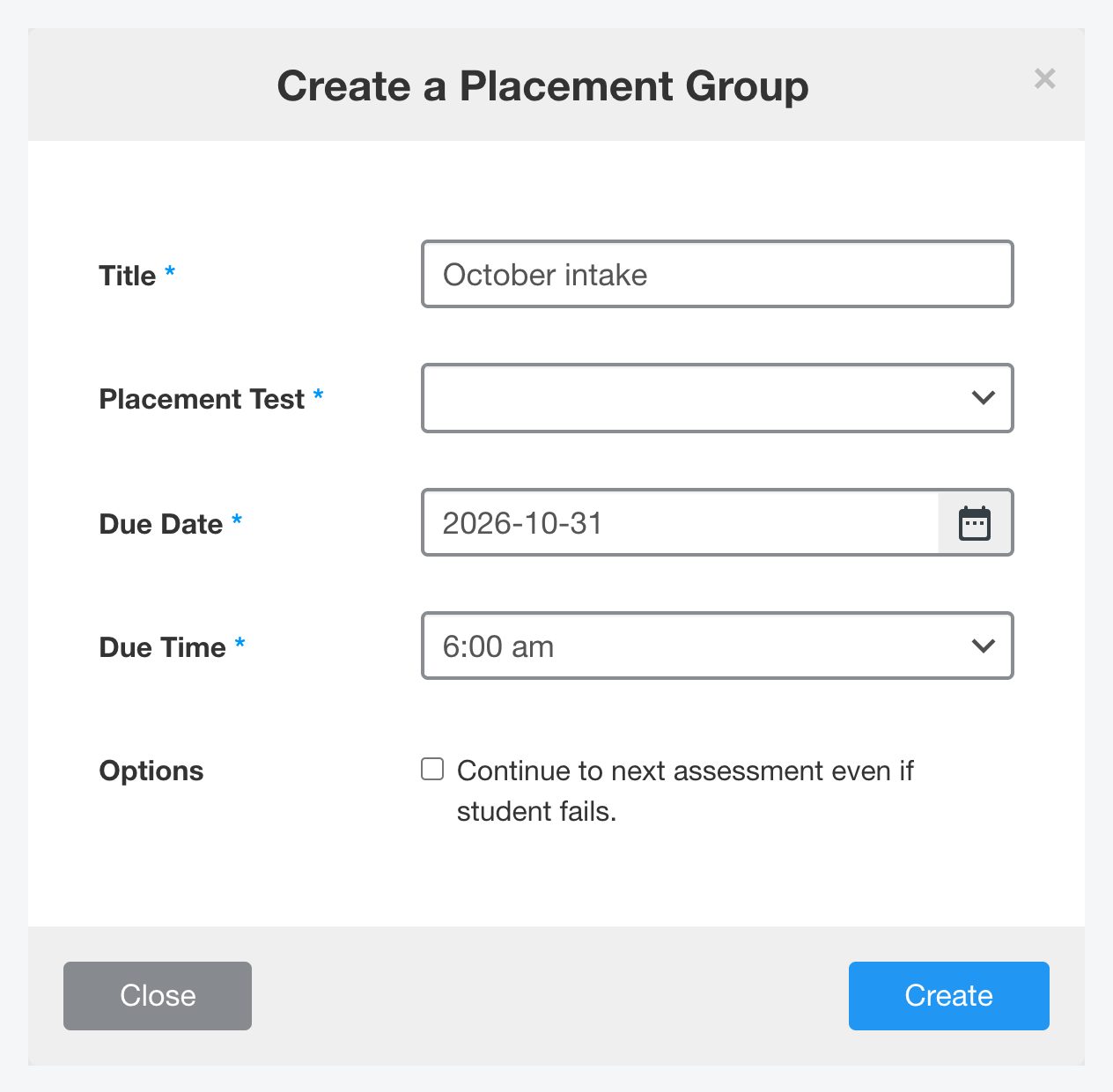
Click Create.
The group appears in the list with its due date, its status and how many results have come in. Use the status menu to make a group Inactive when the intake is over.
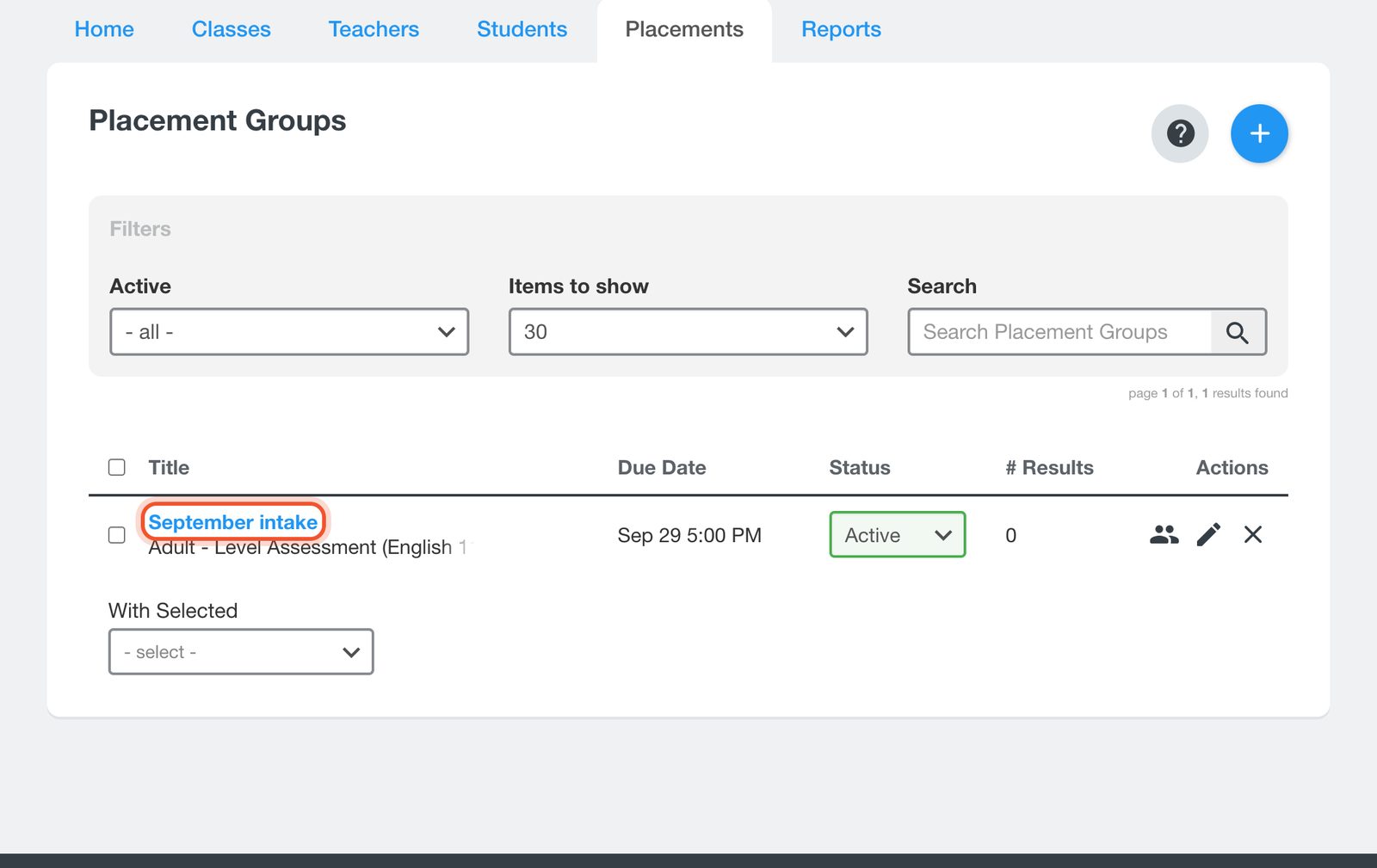
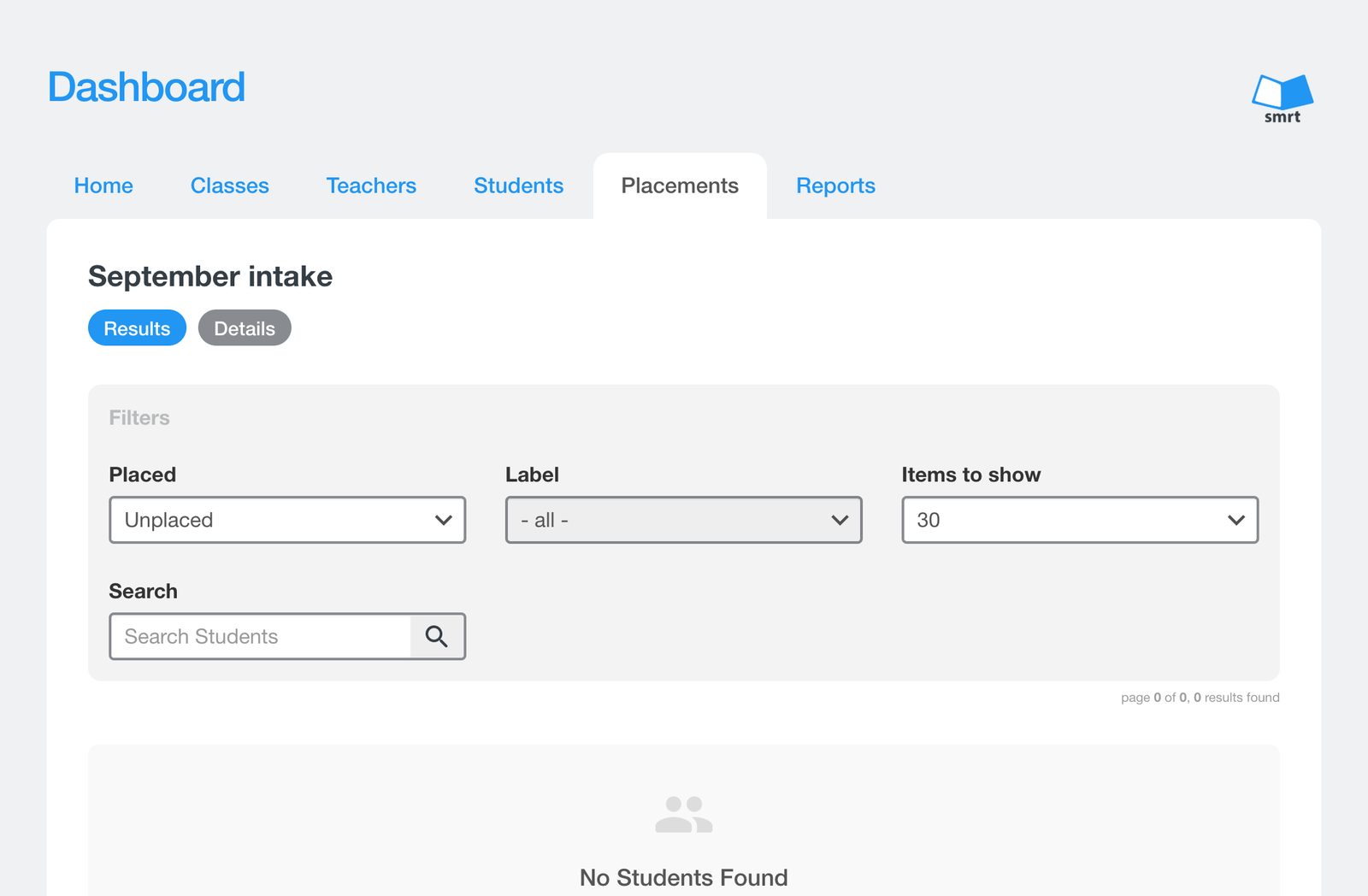
Open the group to see its Results. Students appear here as they finish the test, with the level the test gave them. Filter by Placed or Unplaced to see who still needs a class, and add students to a class from this page.
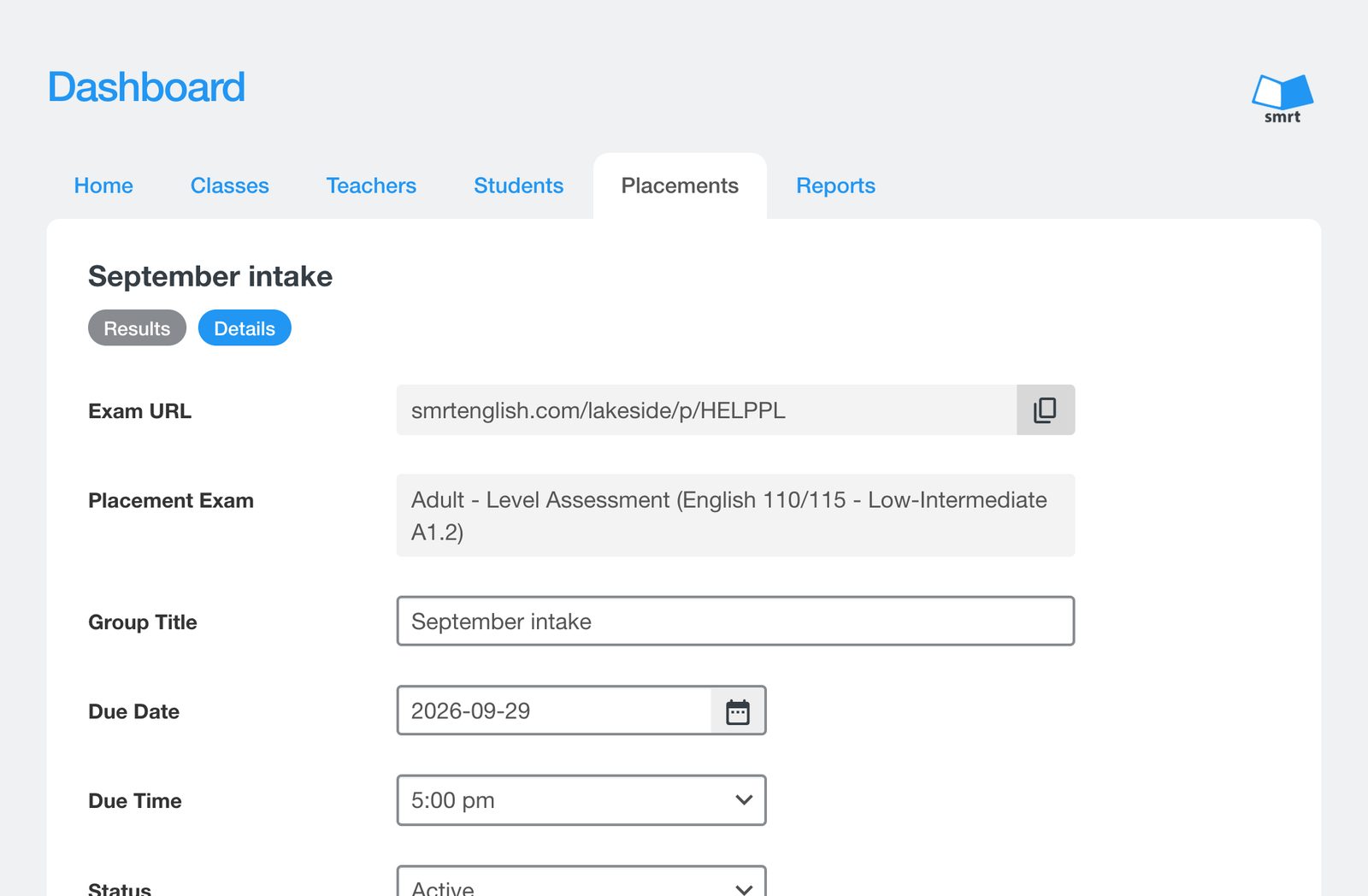
The Details tab holds the Exam URL for this group. Copy it with the button beside it and send it to your new students. Their results come back to this group. You can also change the title, due date, due time and status here.
Students already at your school
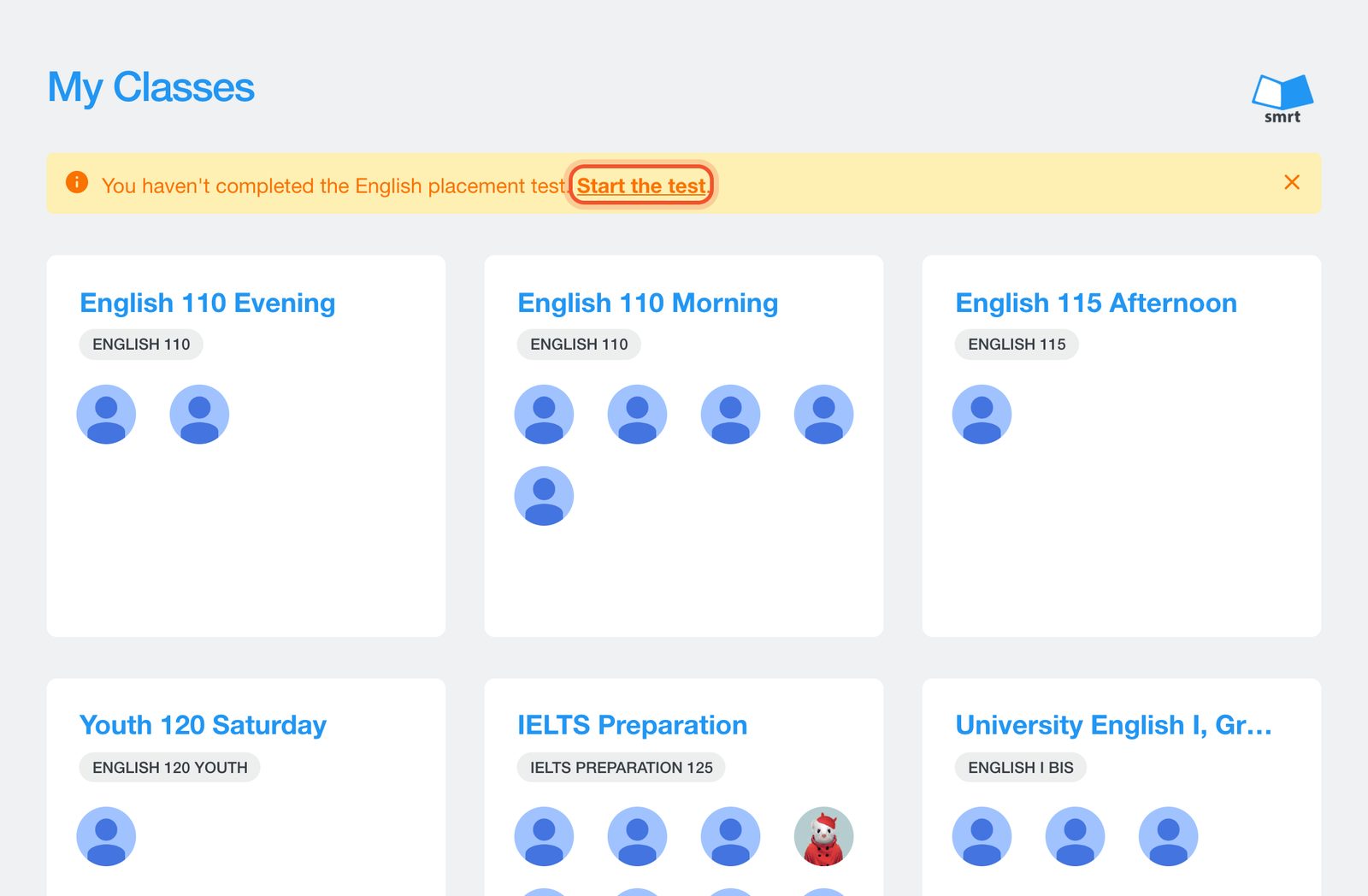
A student who is signed in but has no level yet sees a prompt on their Classes page to take the placement test.
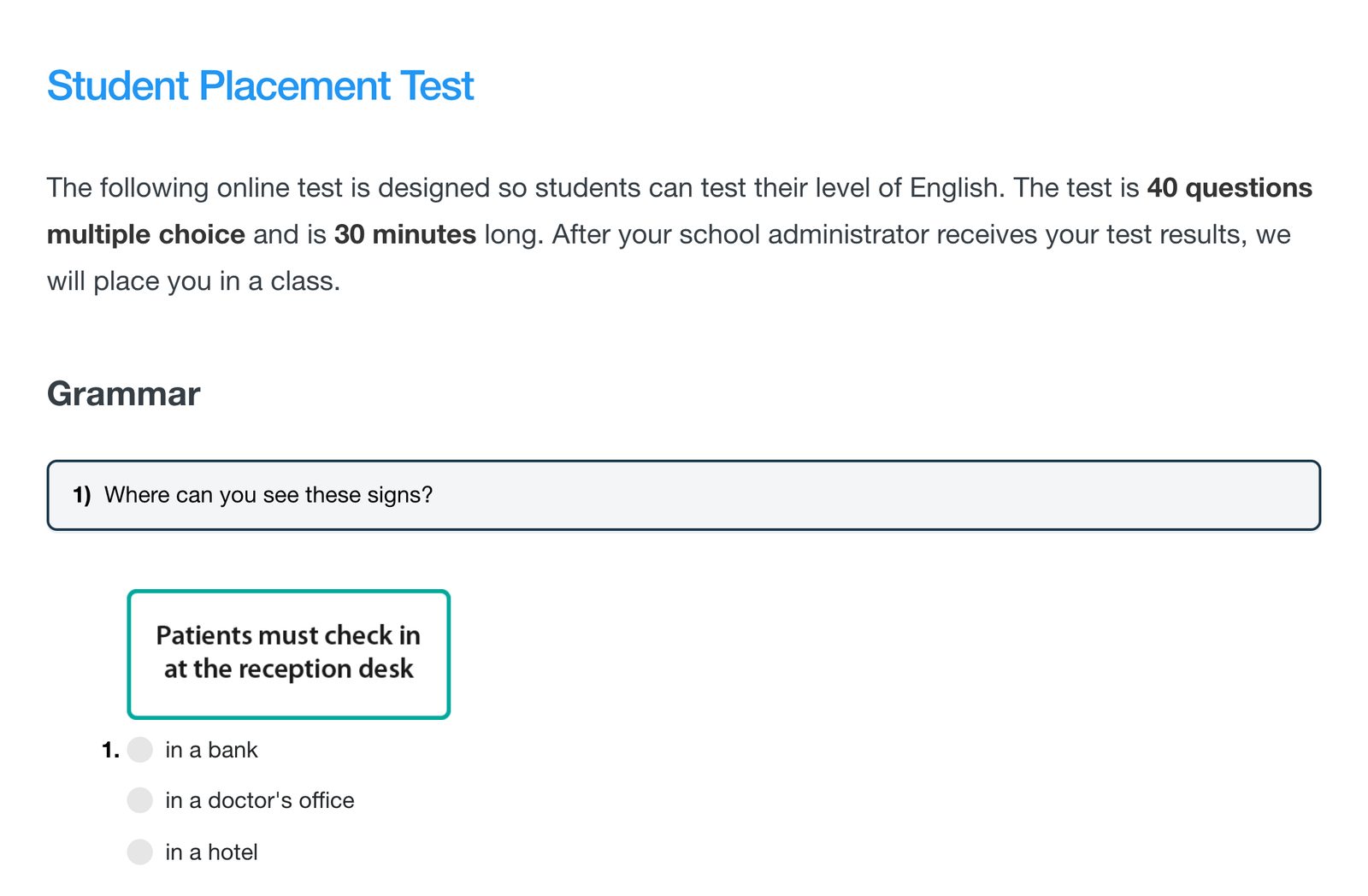
The test is 40 multiple-choice questions and takes about 30 minutes. Schools using the advanced test get 60 questions plus one writing question, in 45 minutes.
A student's level is also on their record: Students, open the student, then Profile, where Placement Test shows the result.


