
Placement and testing
Use your own placement test and levels
Build a placement test for your school, set the score ranges for each of your levels, and use it in a placement group.
You can build your own placement test with your school's levels, and use it instead of a Smrt English test. Only your school sees it.
This needs the assessment creator. Open the Dashboard, click Home, then Settings: under Assessment Creator, Enabled for Admins must have a tick. If it does not, contact Smrt English to turn it on.
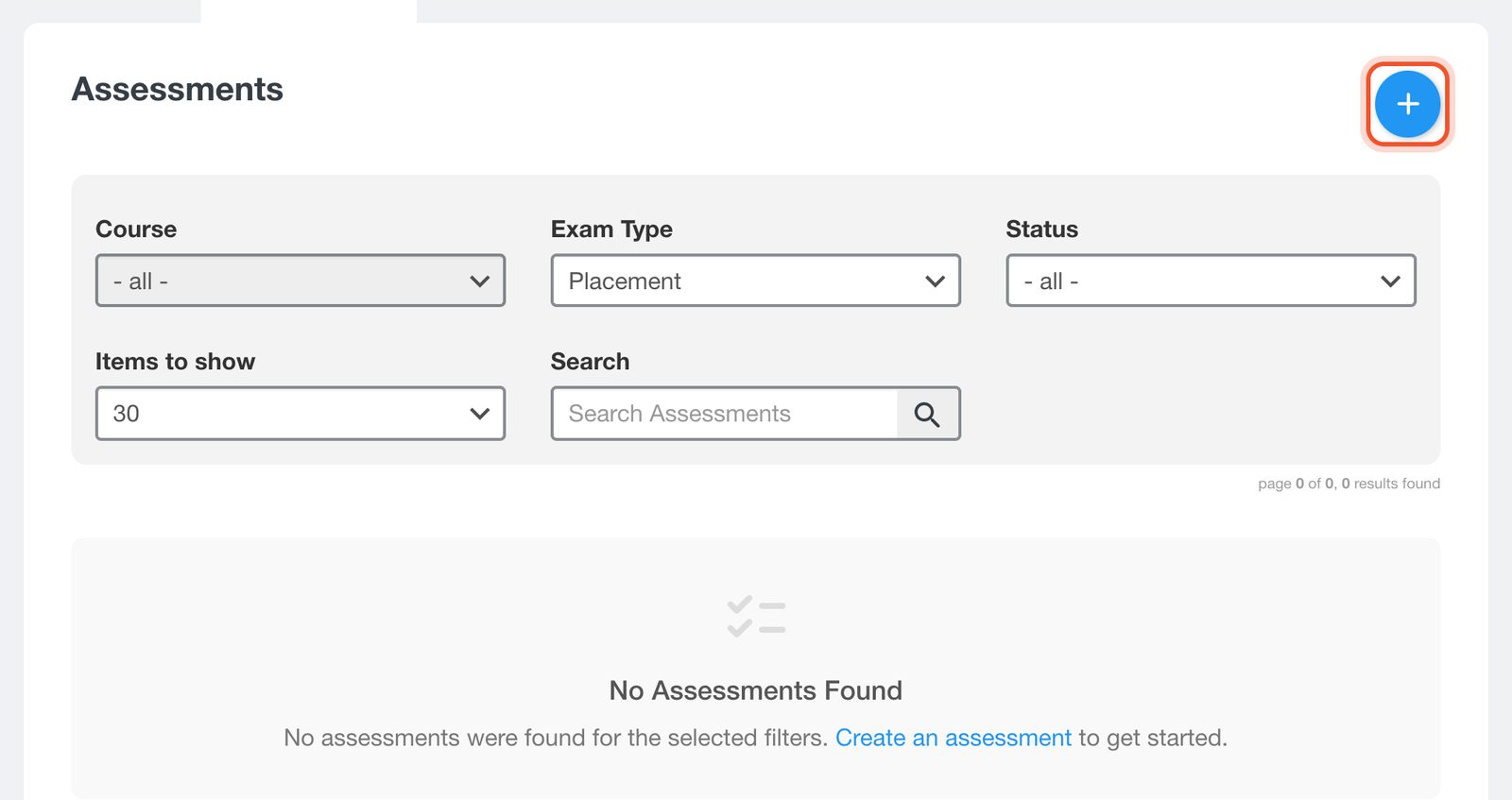
Click Content Creator at the top of the page, then Assessments. Click the + button.
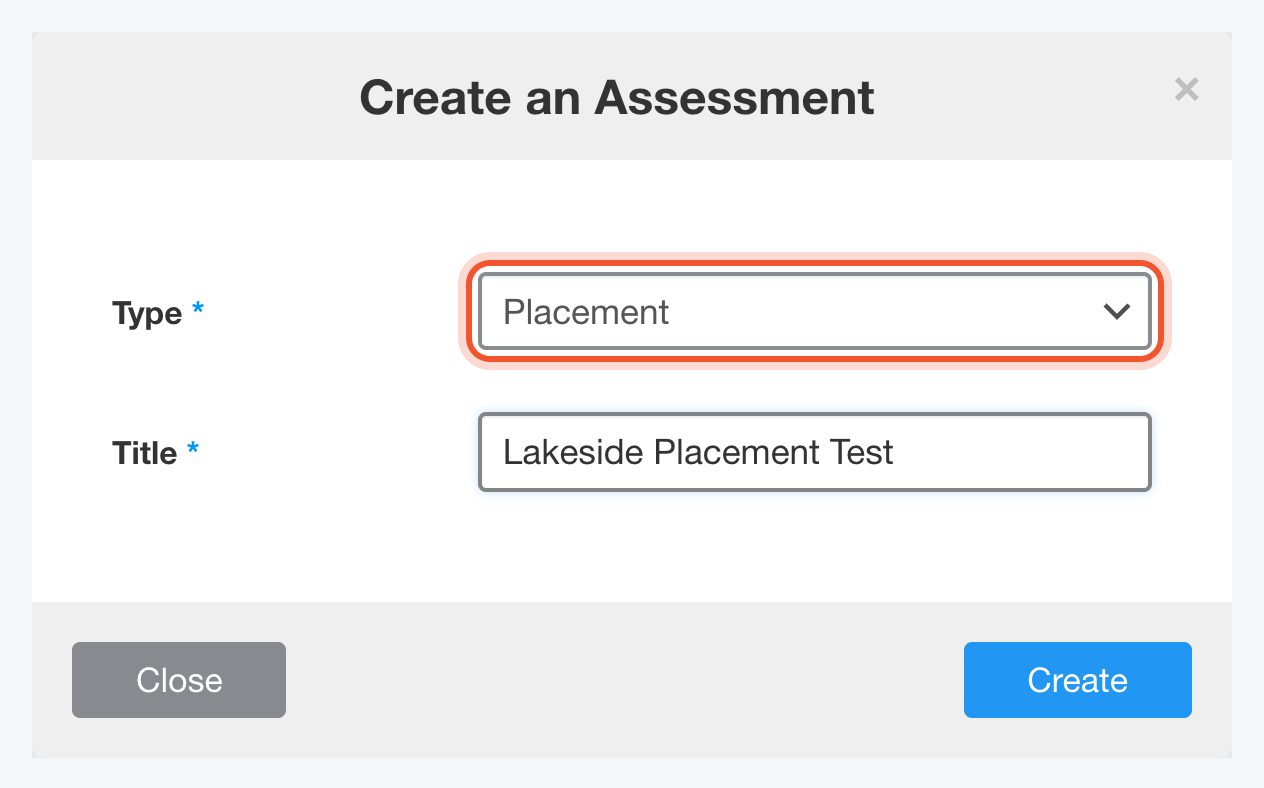
Set Type to Placement, enter a Title and click Create.
The test opens in the editor. Add a section for each part of the test with the + (Add Section) tab, add your questions, and click Save. Preview opens the test as students see it.
Click the Score Breakdown button. For each level, enter a Label and the score range From and To, and click Add for the next level. Click Save. A student whose score falls in a range is placed at that level.
Go back to Assessments and change the test's Status from Unlisted to Published. New tests start unlisted and cannot be chosen until you publish them.
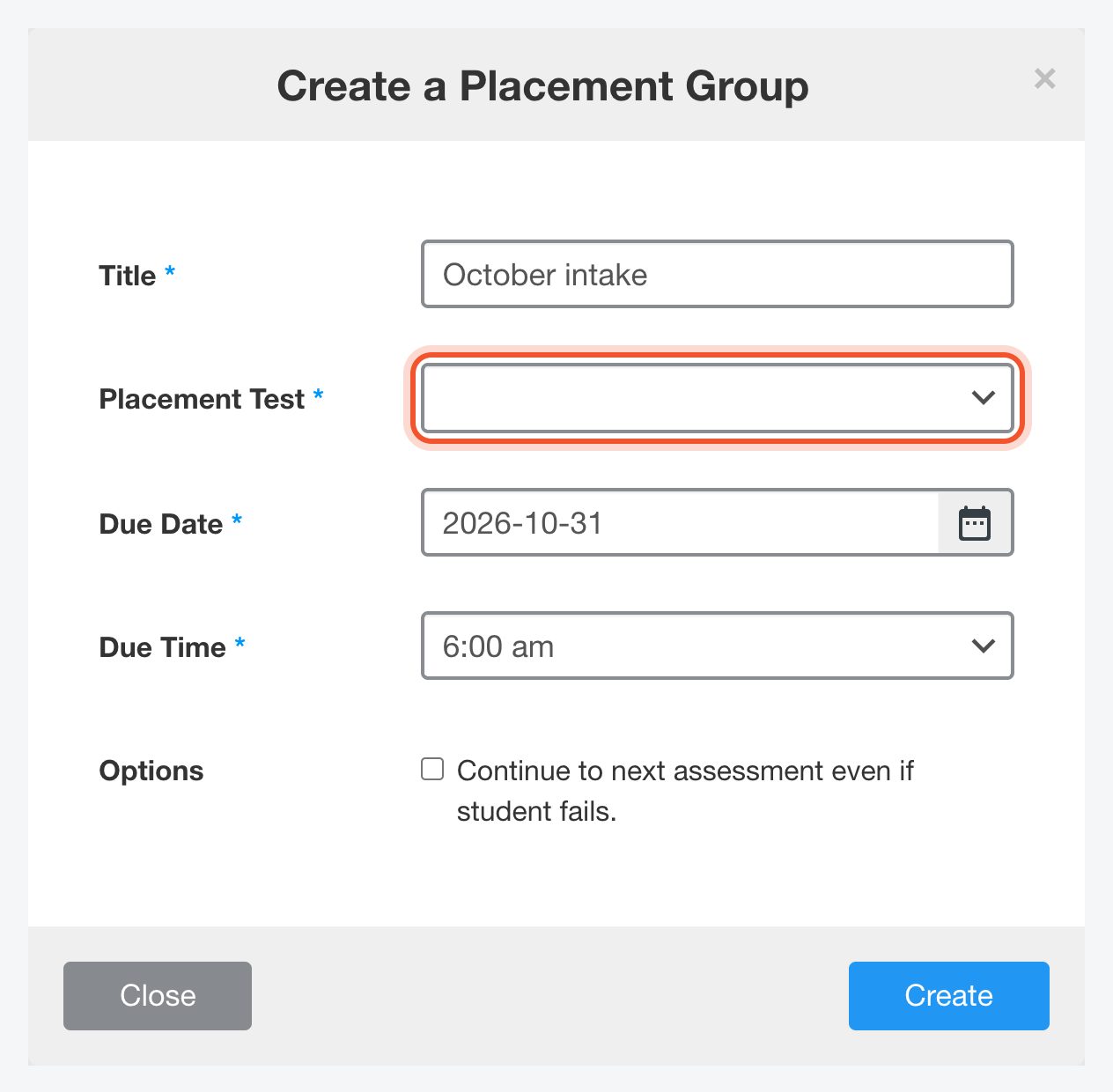
In the Dashboard, click Placements, then Add Placement Group, and choose your test under Placement Test.
Results show the level label from your score breakdown. See Run a placement test for sharing the test and placing students.


