
Classes and attendance
Approve students who join with your class code
When a student enters your class code, they wait on your class list until you approve them.
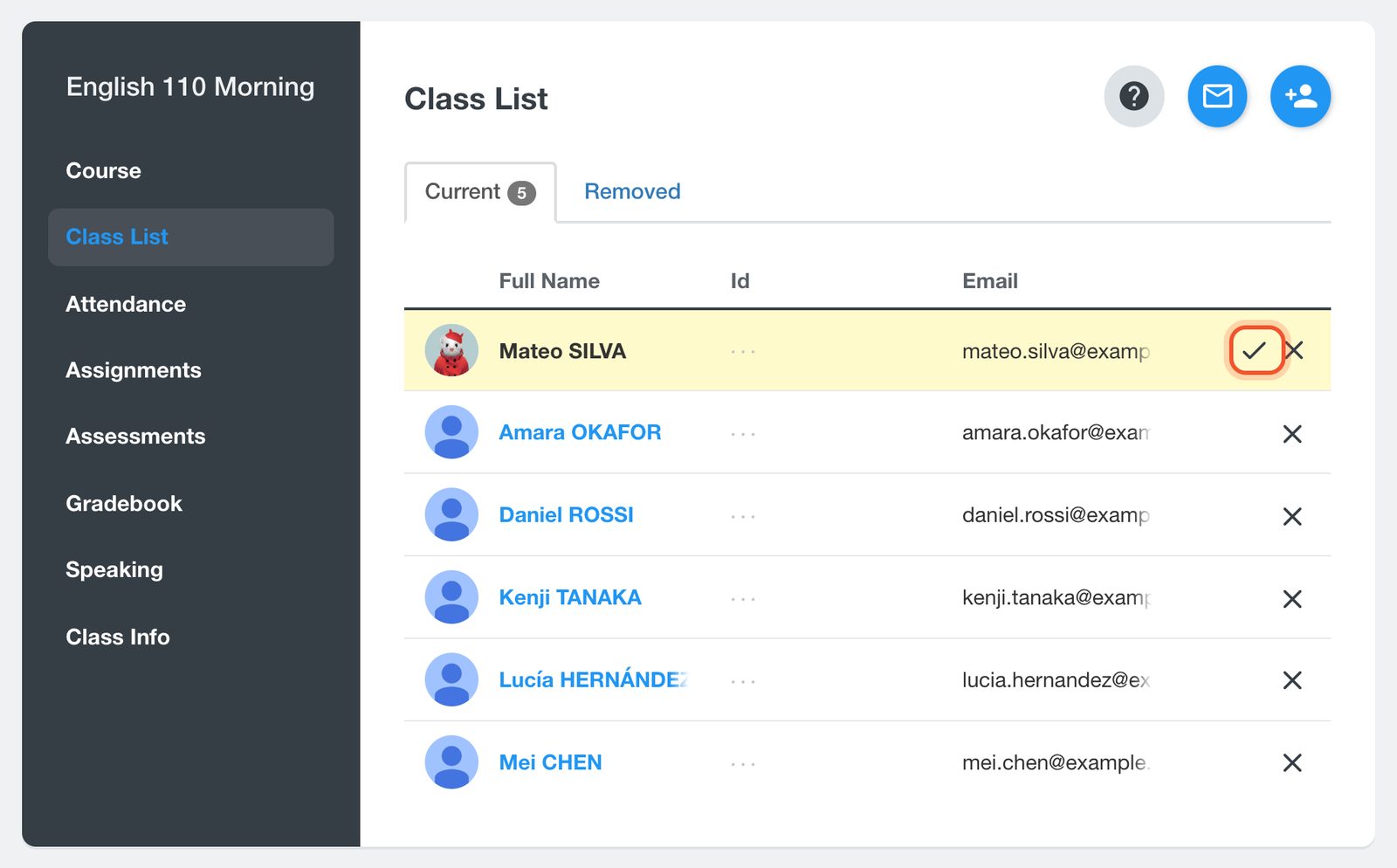
Students who enter your class code do not join straight away. Their request waits at the top of your class list until you approve it.
Open your class and click Class List. Requests are highlighted at the top of the list. Click the tick (Approve) to add the student, or the X (Disapprove) to decline.
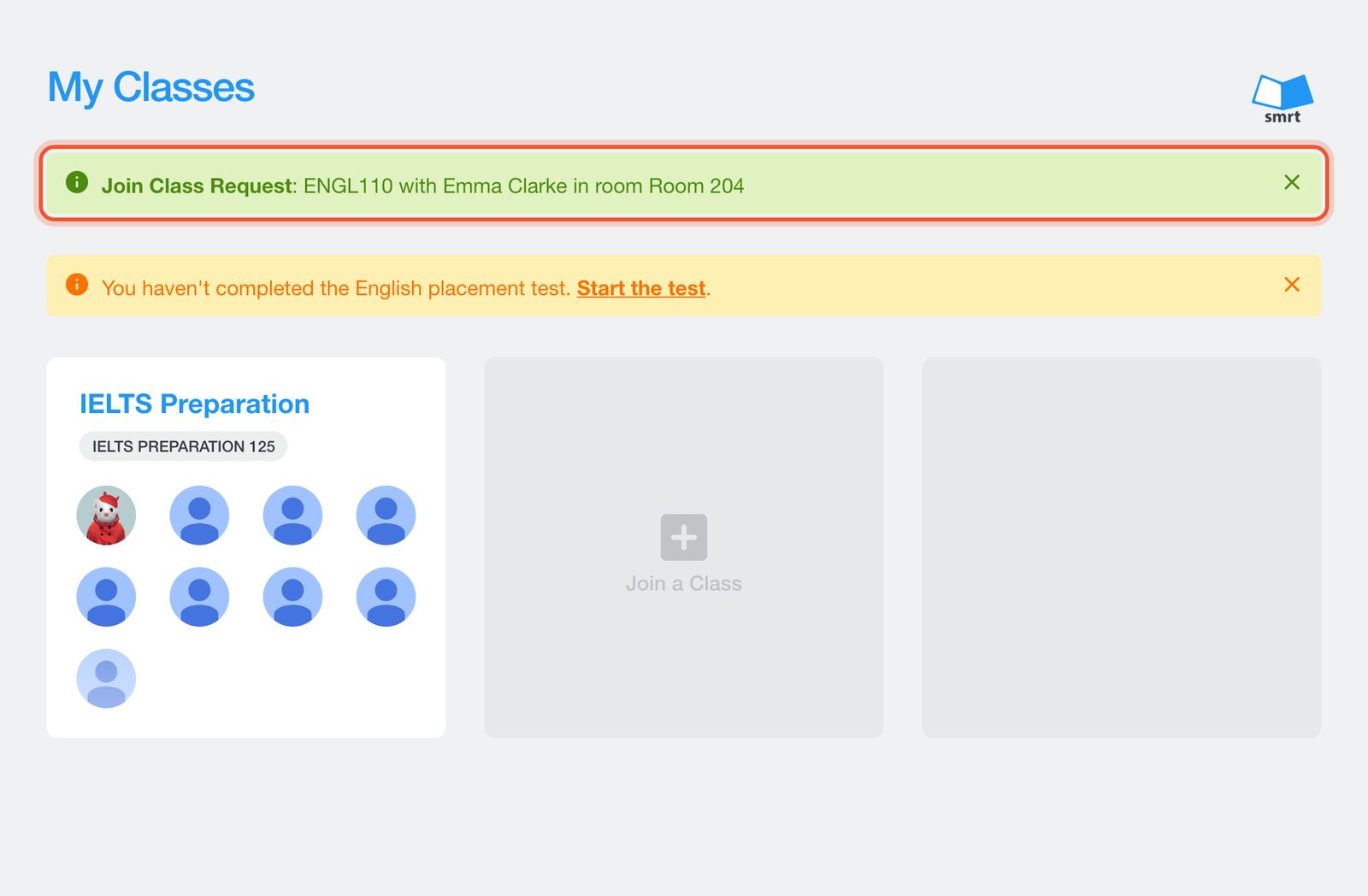
Until you approve, the student sees Join Class Request on their Classes page. They can cancel it with the X.
Only the class's teacher can approve a request. A school administrator can add the student to the class by email instead, which clears the request. See Add students to a class.
If a student cannot send a request
- Class does not exist: the code is wrong, or the class is no longer active.
- Cannot join a class of a different school: the student's account belongs to another school. Check they signed in with the email your school uses.
- Request to join class is already pending: the request is waiting for you on the class list.
- Already in class: the student is already on the list.
Related
- Join your class with a class code, for students.


