
Getting started
Sign in with Google or Microsoft
Use the Google or Microsoft account with the email address your school added, and your classes are there when you sign in.
Your school chooses how its students and teachers sign in: with Google or with Microsoft. You only see the button your school uses.
Open your school's Smrt English website. The address looks like smrtenglish.com/yourschool and is in the email your school sent you.
Click Sign in with Google, or Sign in with Microsoft if your school uses Microsoft. On your school's home page, click Sign in first.
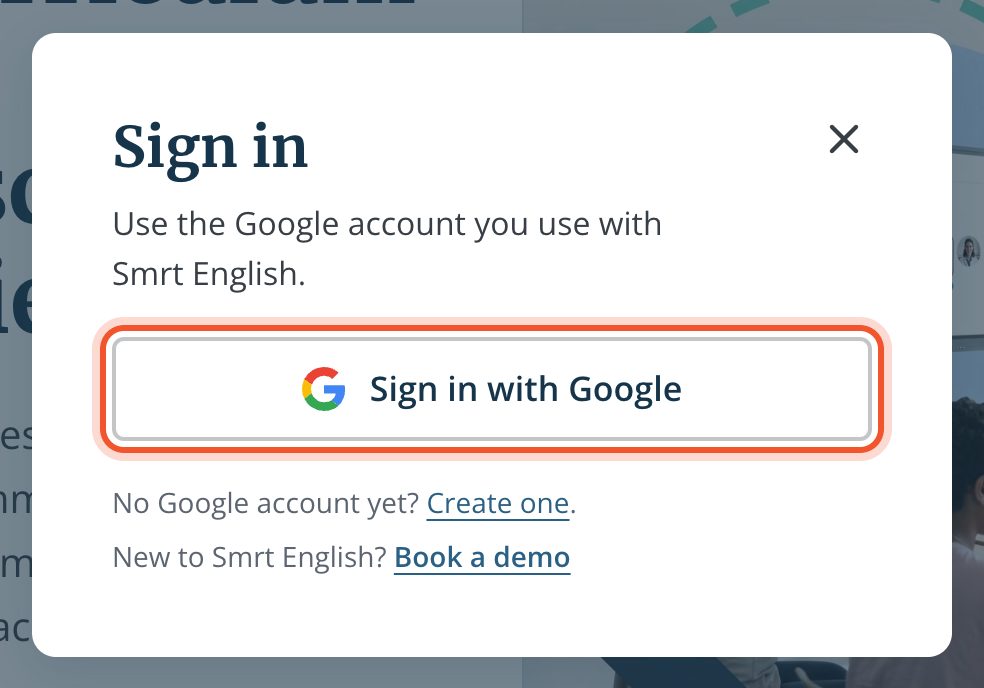
On the Google or Microsoft page, choose your account, or enter your email address and password.
You are signed in and taken to your school's Smrt Café. Your classes are on the Classes page.
Use the email address your school added
Your school adds you to Smrt English with one email address. Sign in with the Google or Microsoft account that uses that address, and your school, classes and teacher role are there the first time you sign in.
If you sign in with a different account, Smrt English creates a new account without your classes. Sign out, then sign in again with the right account. A private (Incognito) window helps if your browser keeps choosing another Google account.
Your email address is not a Google account yet?
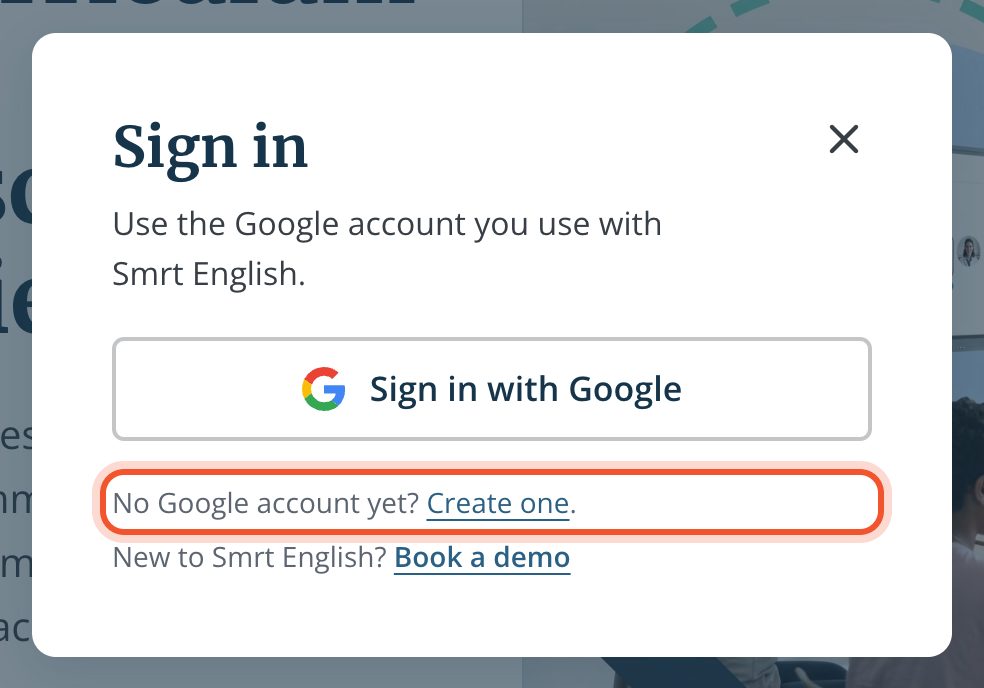
In the Sign in window, click Create one next to "No Google account yet?". It opens Google's page for a new Google account, where you can sign up with the email address your school added. Then come back and click Sign in with Google.
Forgot your password?
Google and Microsoft passwords are reset with Google or Microsoft. See Sign in if you forgot your Google or Microsoft password.


