
Getting started
Reset a forgotten password
If you sign in with an email address and a password, get a new password sent to your inbox.
This is for accounts that sign in with an email address and a password. If you sign in with Google or Microsoft, see Sign in if you forgot your Google or Microsoft password.
Open your school's sign-in page. The address looks like smrtenglish.com/yourschool/login. Click Forgot Password? under the Sign in button.
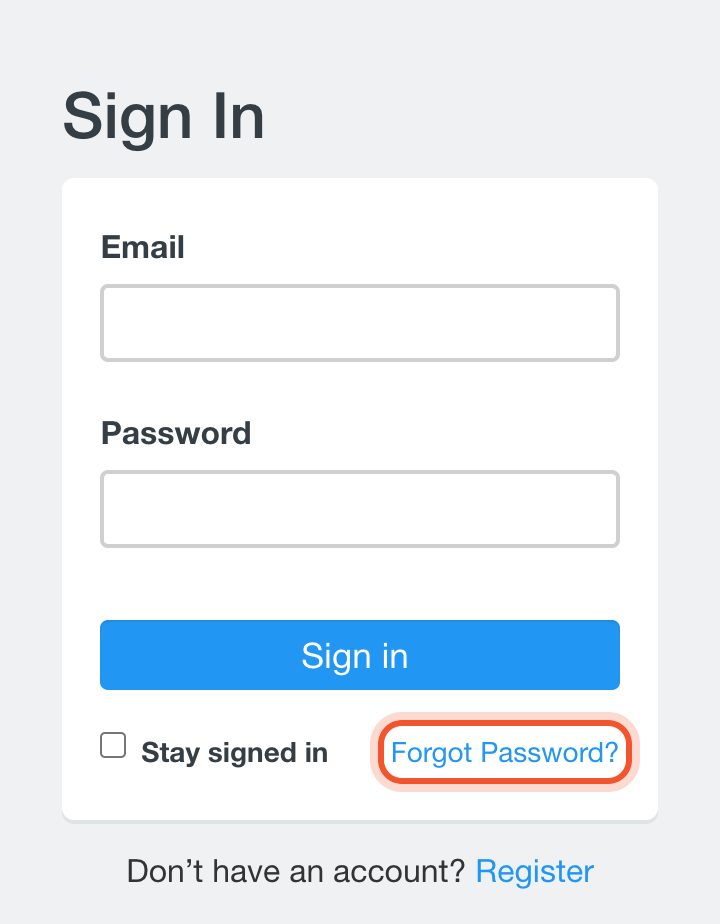
On smrtenglish.cn, click Sign In at the top of any page to get there.
Enter the email address you use for Smrt English and click Forgot Password.
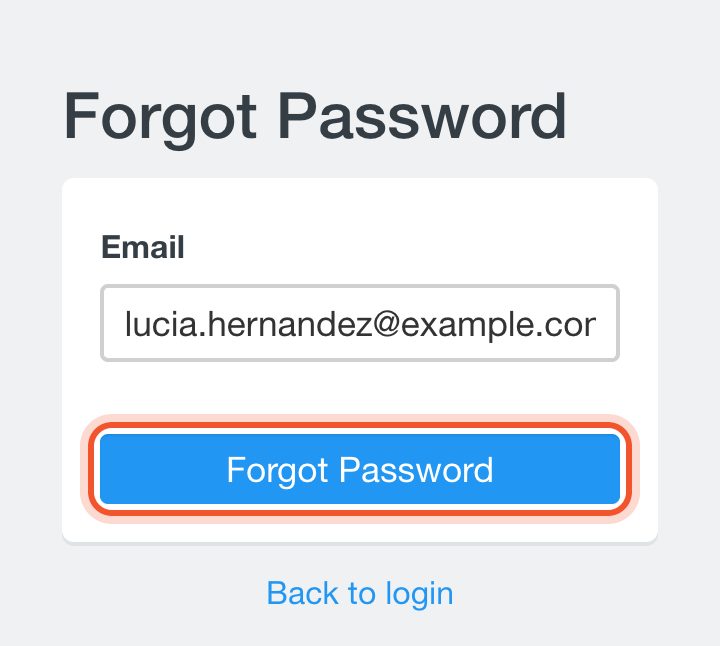
When the page says your new password has been sent to your inbox, open your email. The message is called "Smrt English - Your new password" and has your username and a new password.
Your old password stops working as soon as the email is sent.
Go back to the sign-in page and sign in with your email address and the new password.
Change it to a password you will remember. Click your profile picture at the top right, then Me. Click Change Password, enter the password from the email as your Current Password, type your New Password twice and click Submit.
Use at least 4 characters, with letters and numbers only.
If it doesn't work
- Email does not exist means no account uses that address. Check the spelling, or try another email address you might have signed up with.
- We're sorry, but an error has occurred. Please try again at a later time. also appears when the account signs in with Google or Microsoft. Those accounts have no Smrt English password, so see Sign in if you forgot your Google or Microsoft password.


