
Assignments, quizzes and grades
See how your students are doing
Where to check the class's progress through the course, each student's results and attendance, and how the class did on each question.
Your class pages show progress for the whole class, and each student has a profile with their results and attendance.
The whole class
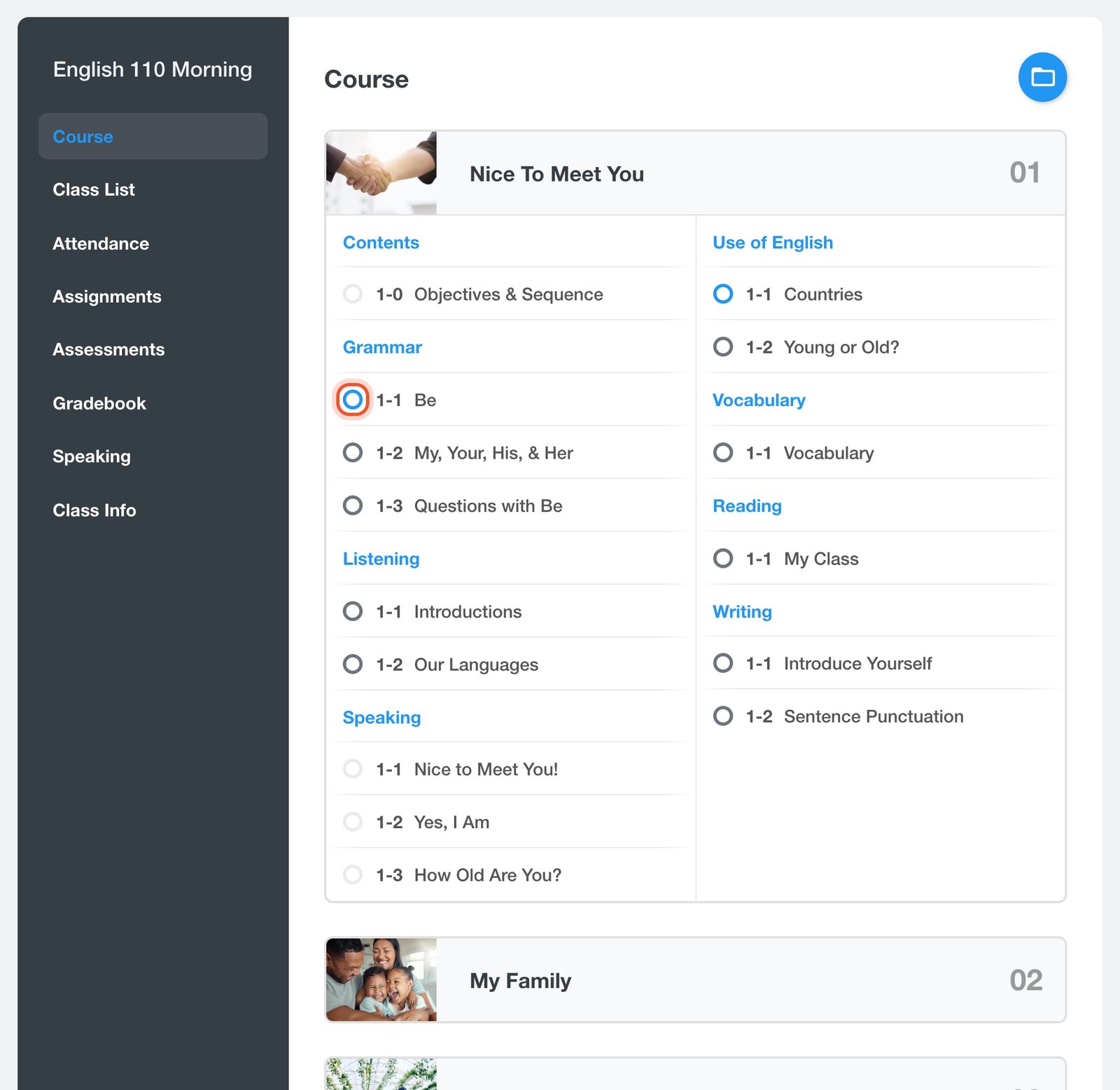
Open your class and click Course. The circle beside each lesson shows where the class is: point at it to see Exercises shared, Complete, Scheduled, Not Shared or Lesson Only.
Click Gradebook for every quiz and exam score in one table. See See the class gradebook.
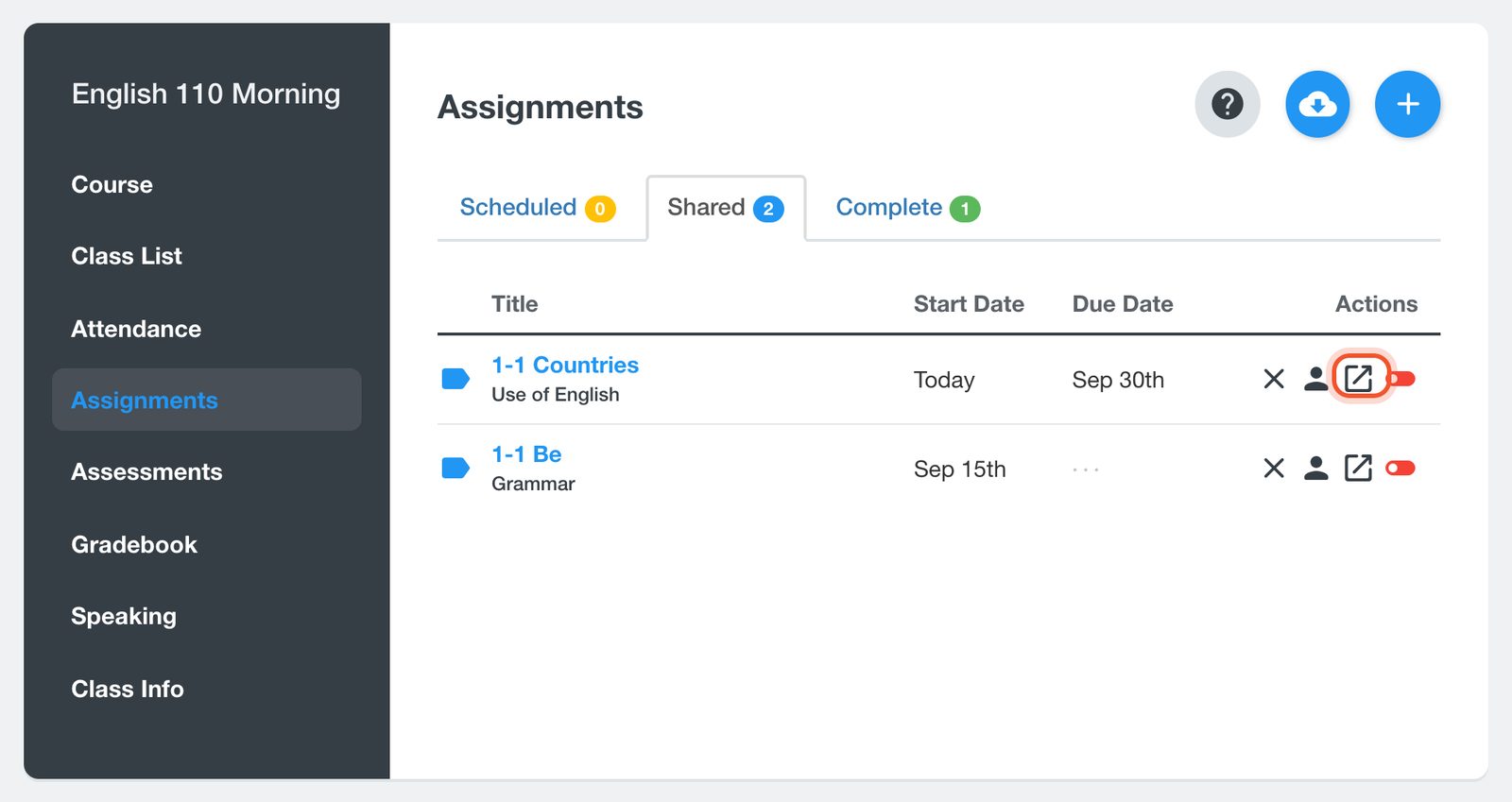
To see how the class did on each question of an assignment, click Assignments, then the Class Results button (the arrow in a box) on its row. The exercise opens in a new tab with the correct answers and percentages that show how the class answered each question.
One student
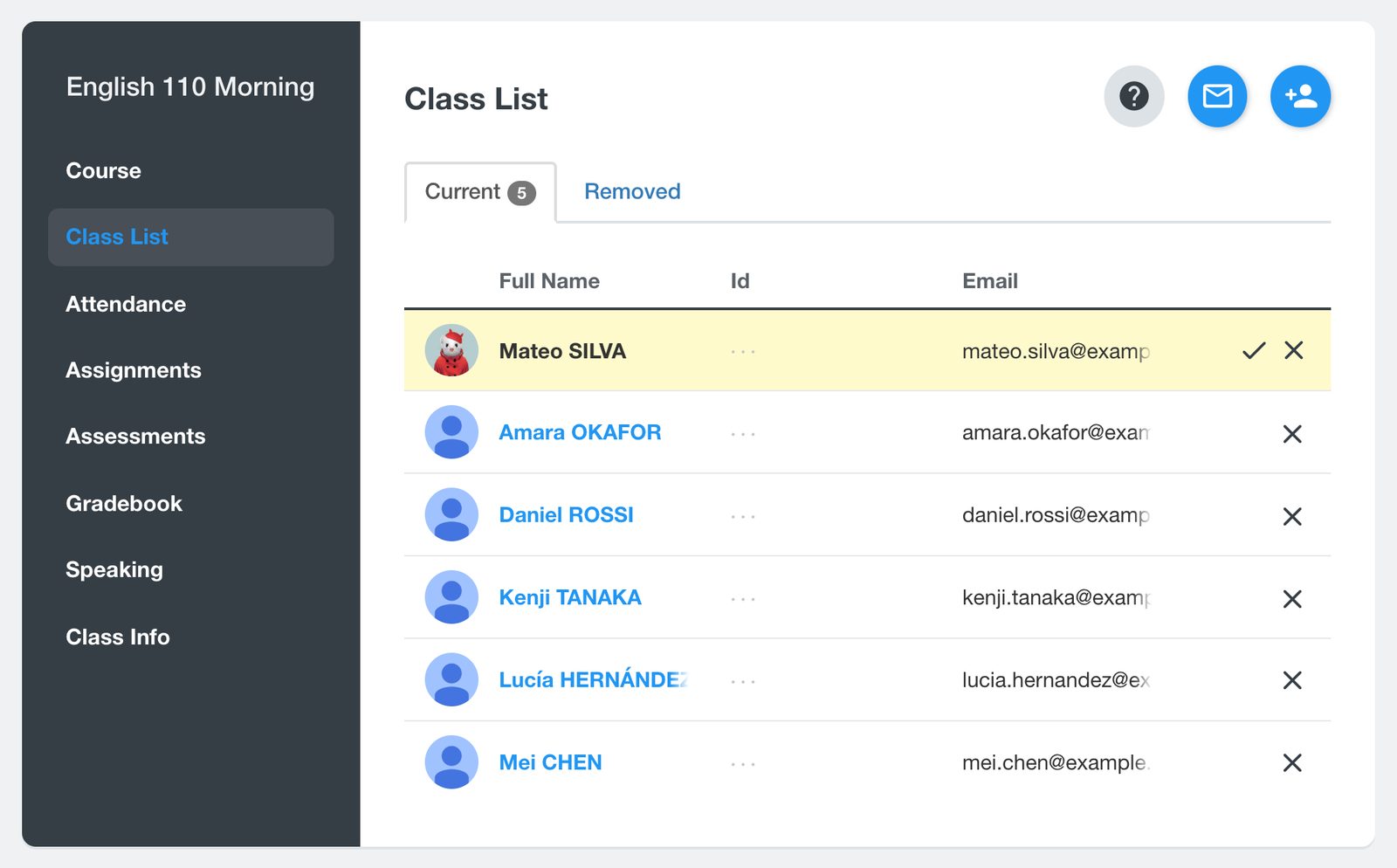
Open your class, click Class List, then click the student's name.
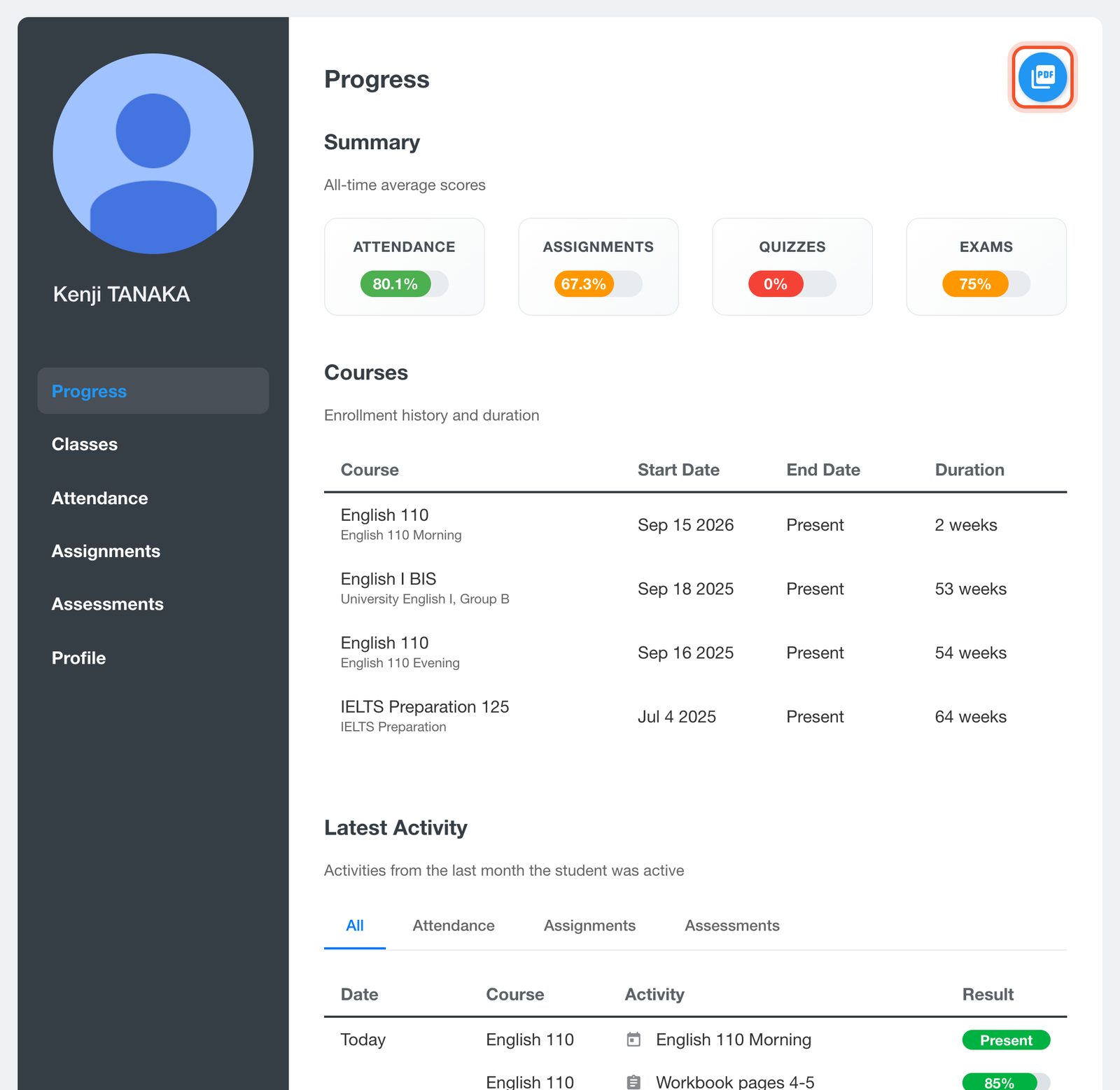
The student's Progress page shows their all-time average for Attendance, Assignments, Quizzes and Exams, the courses they have taken, and their Latest Activity.
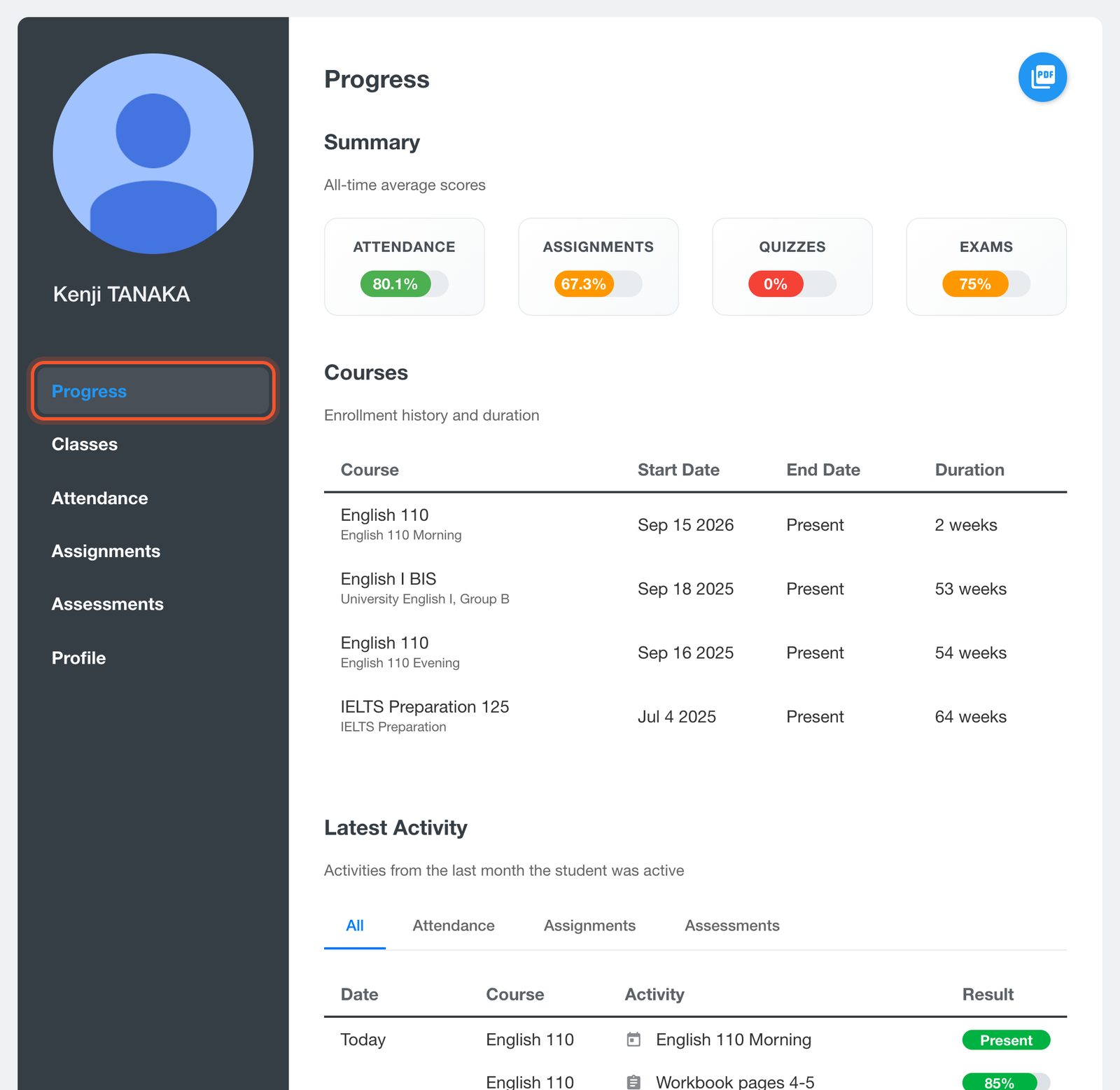
Use the menu on the left to see all of their Attendance, Assignments and Assessments, with filters for class and dates.
To save a report, click the Download Transcript button at the top of the Progress page. Choose the dates and the sections to include, then click Download.
To look up attendance for the whole class, use Search Attendance on the Attendance page. See Take attendance and update past records.


