
Assignments, quizzes and grades
Record a paper test, oral exam or presentation
Add scores for work done away from Smrt English, so they sit next to your class's online results.
Some work happens away from the screen: paper tests, oral exams, presentations, workbook pages. You can record those scores in your class too.
- Use External Assessment for tests, oral exams and presentations. These scores appear in the gradebook.
- Use External Work for practice, such as workbook pages or a class project. These scores are not included in the gradebook.
Record a test, oral exam or presentation
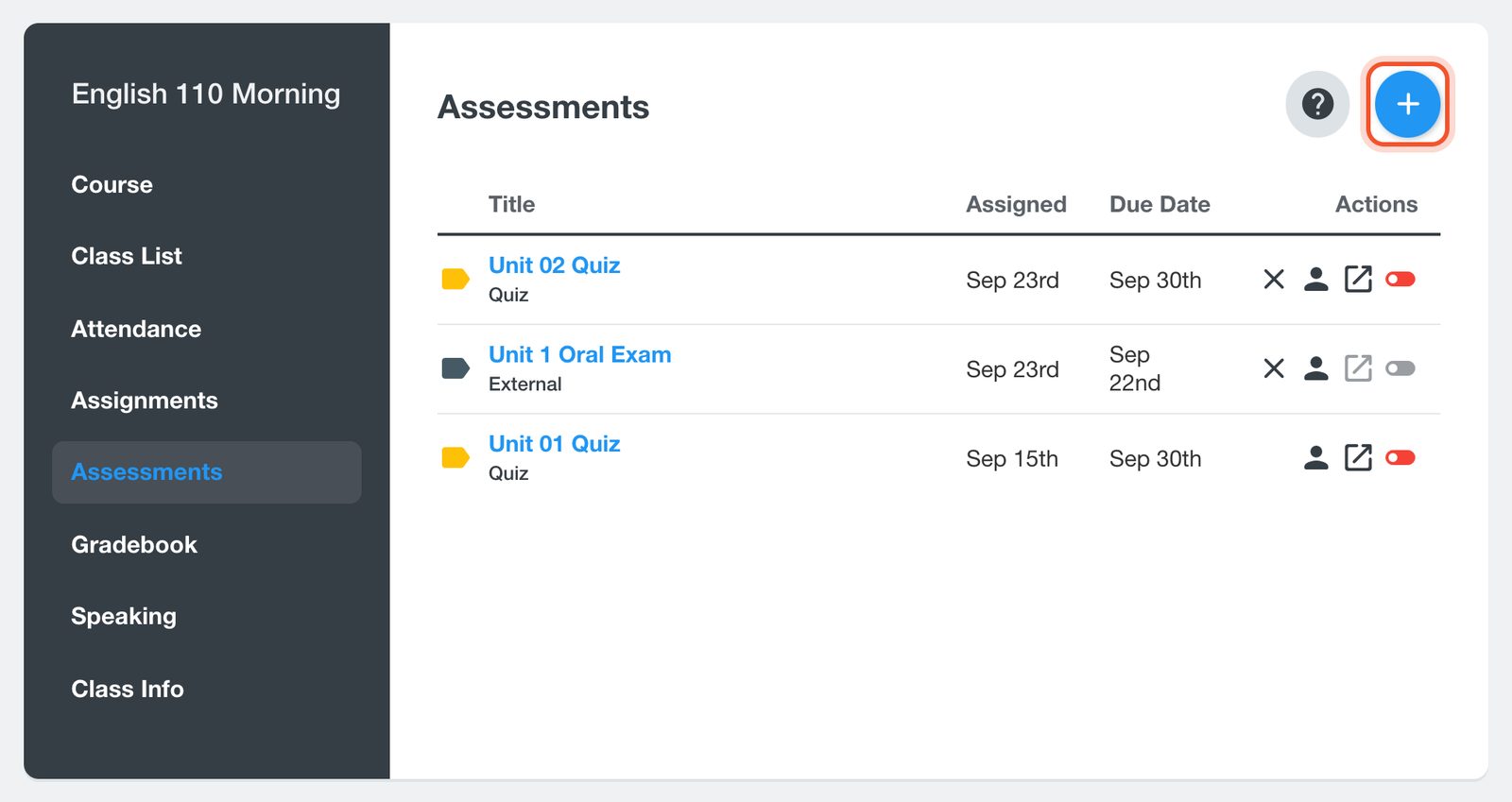
Open your class, click Assessments, then click the + button.
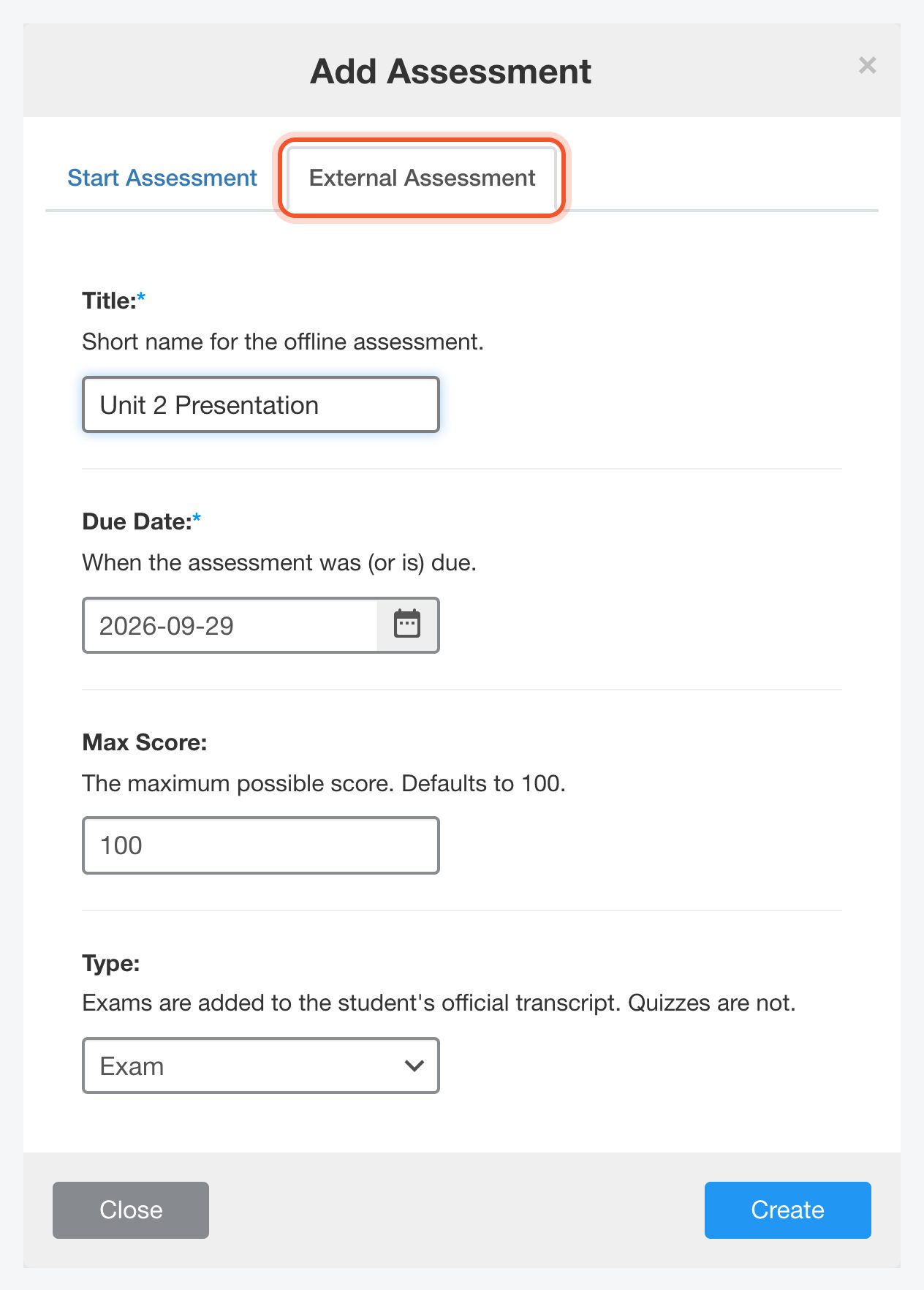
Click the External Assessment tab. Type a Title, such as "Unit 2 Presentation", and choose the Due Date.
Choose the Type. An Exam is added to the student's official transcript. A Quiz is not. Click Create.
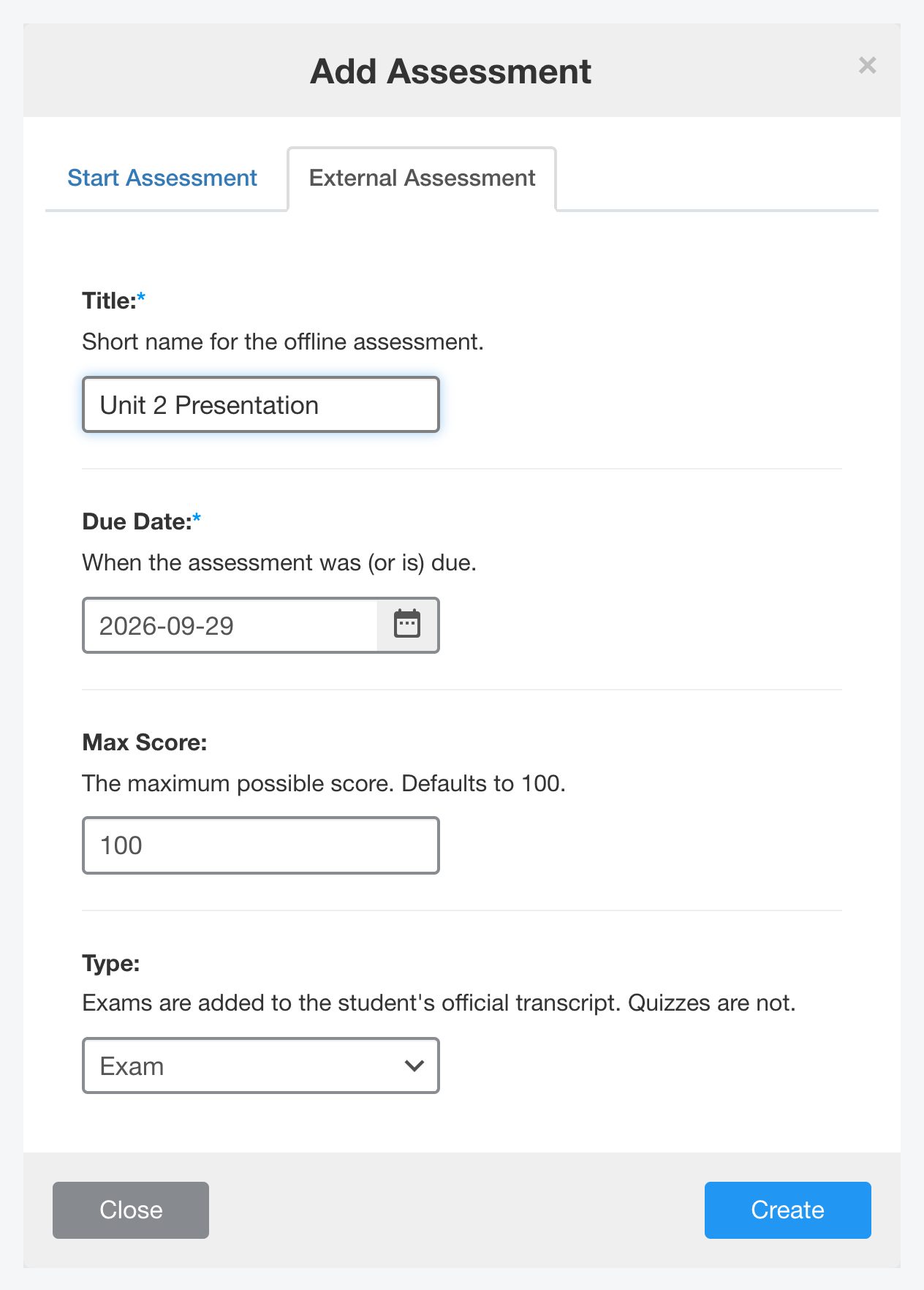
Scores show as percentages in the gradebook and on the student's page, so it is simplest to leave Max Score at 100 and give each score out of 100.
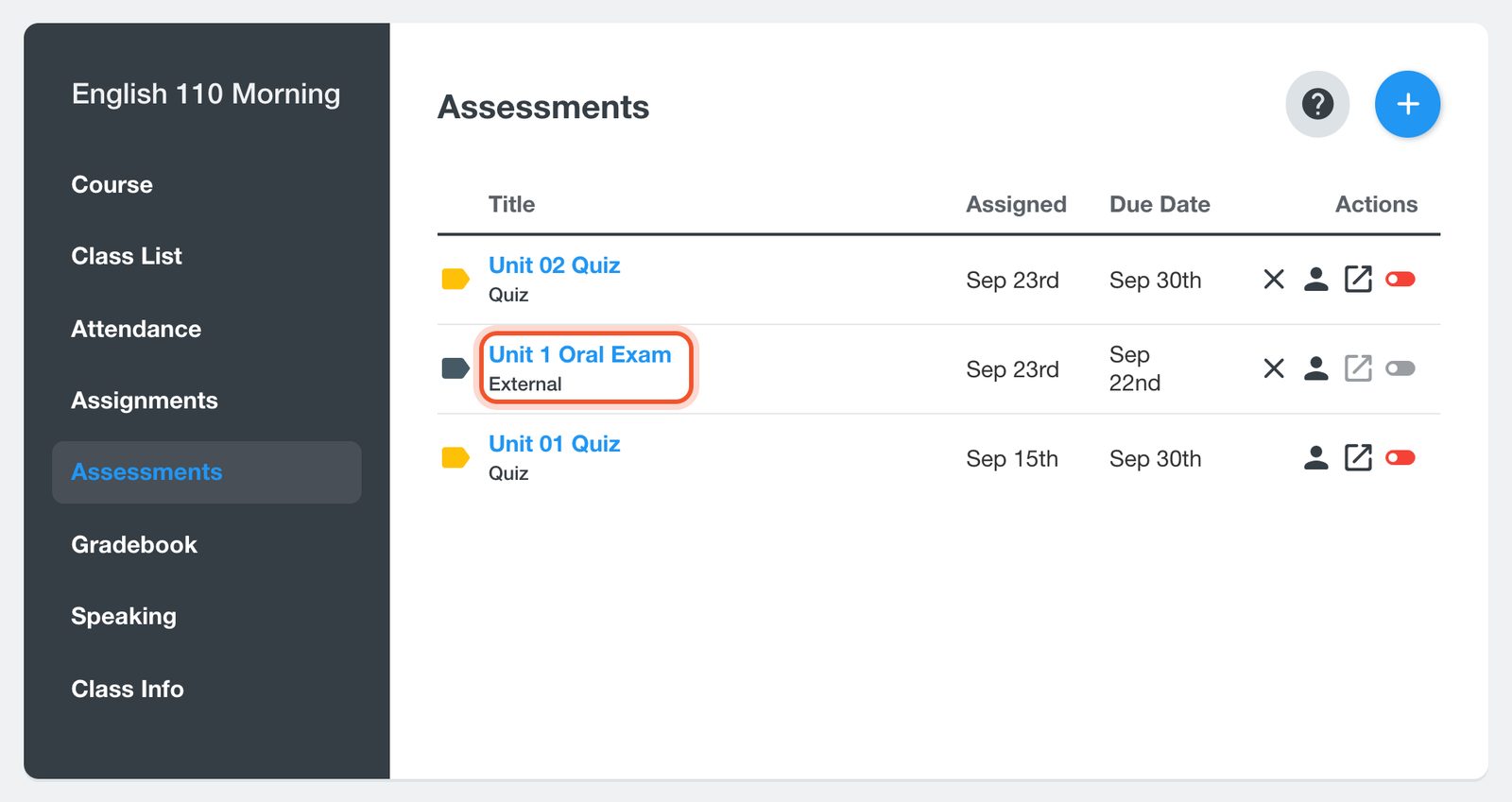
The assessment is listed on the Assessments page and marked External. Click its title to open it.
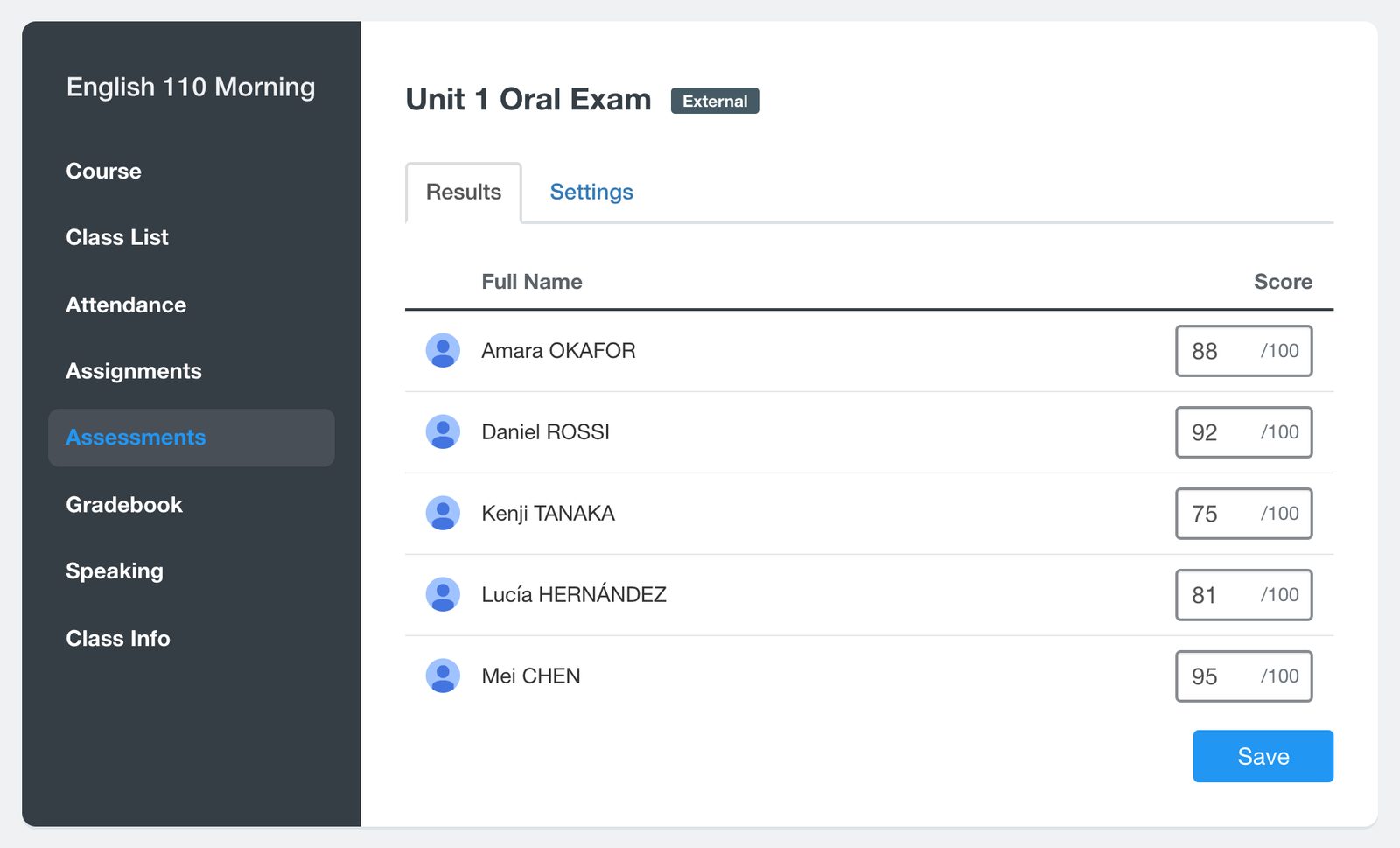
On the Results tab, type each student's score and click Save. You can come back at any time to add missing scores or change one. Clear a box and save to remove that score.
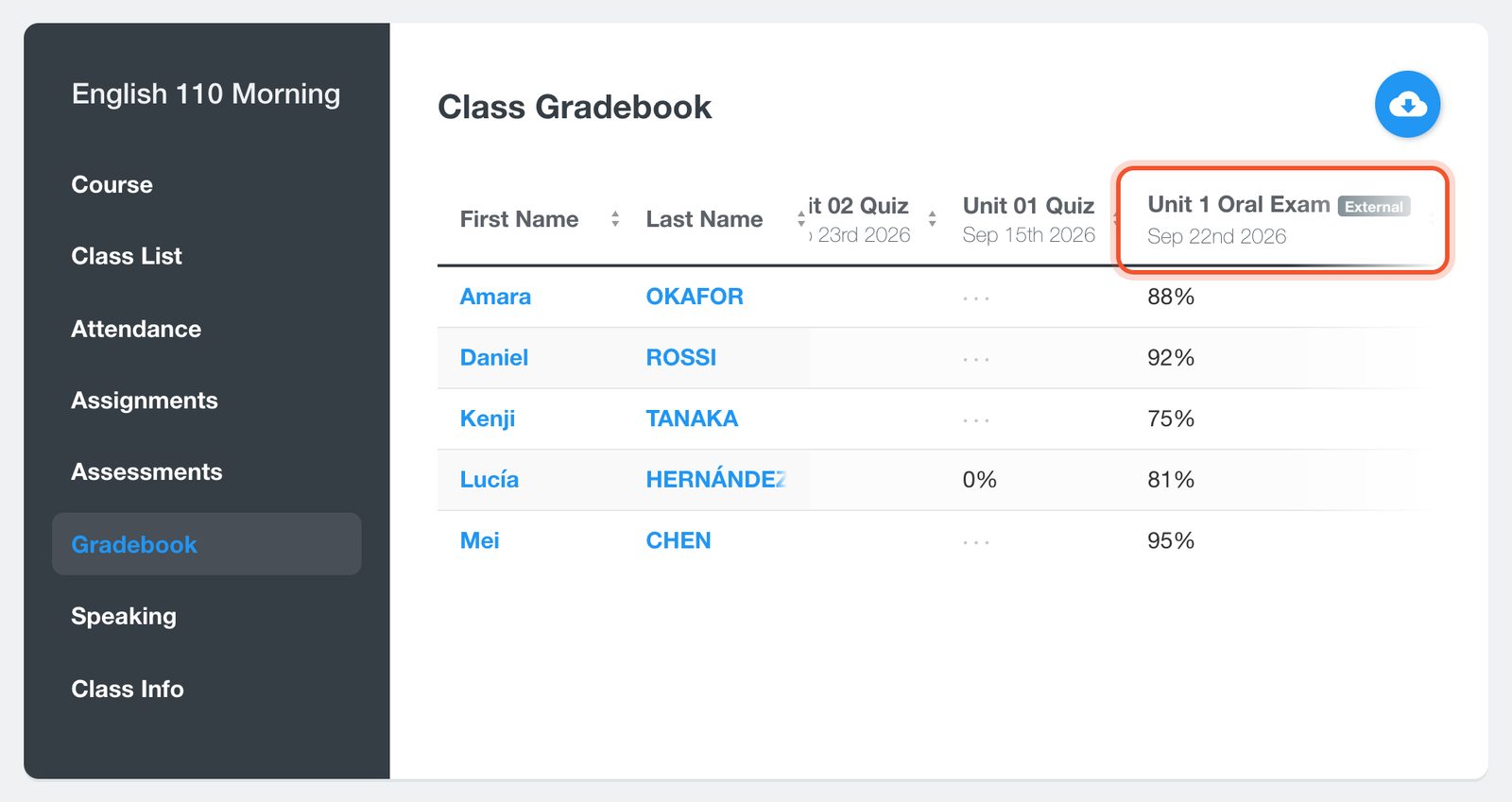
The assessment now has its own column in the class Gradebook, and its scores count toward each student's Overall Score.
Record practice work
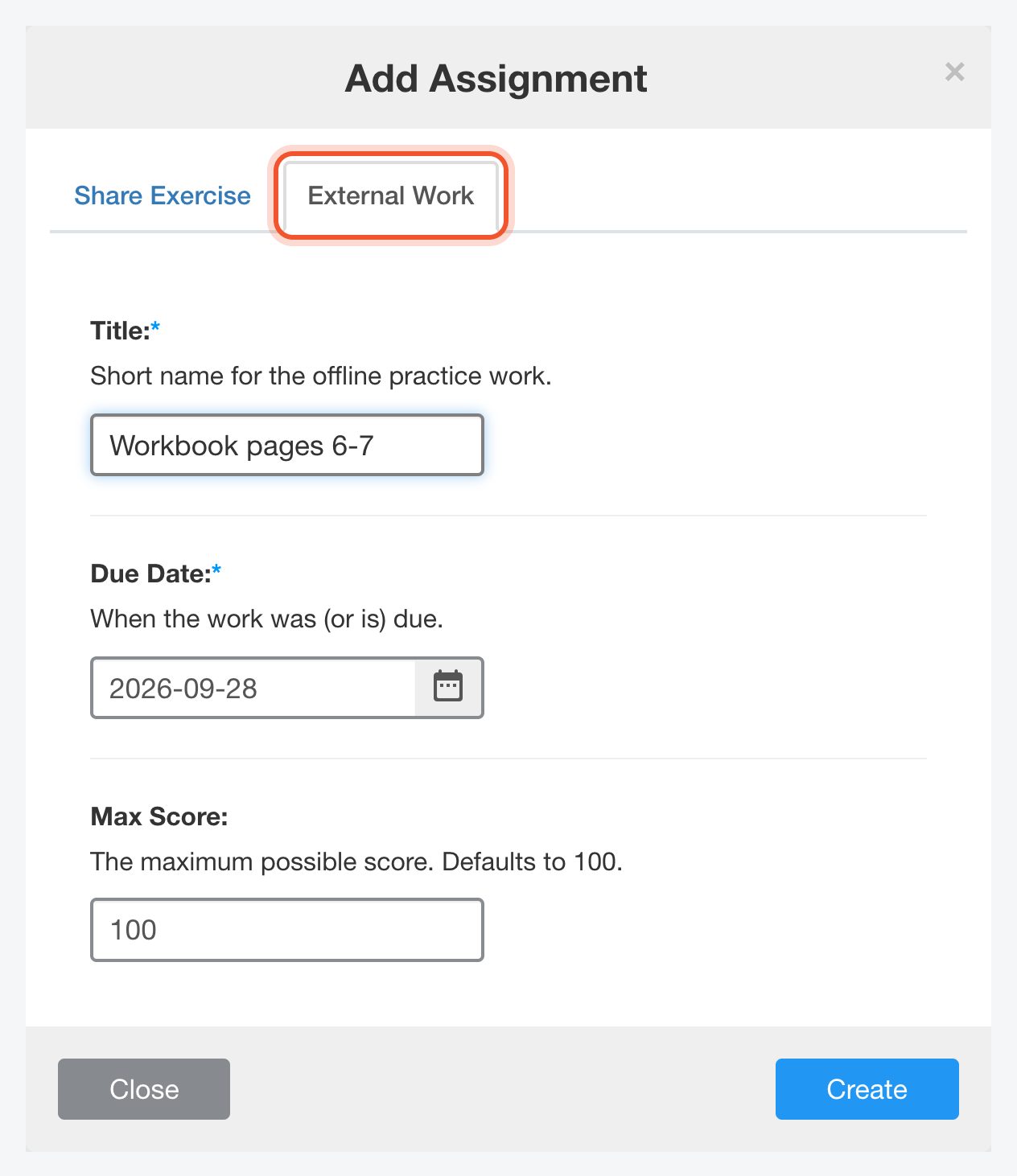
Open your class, click Assignments, click the + button, then click the External Work tab. Type a Title, choose the Due Date and click Create.
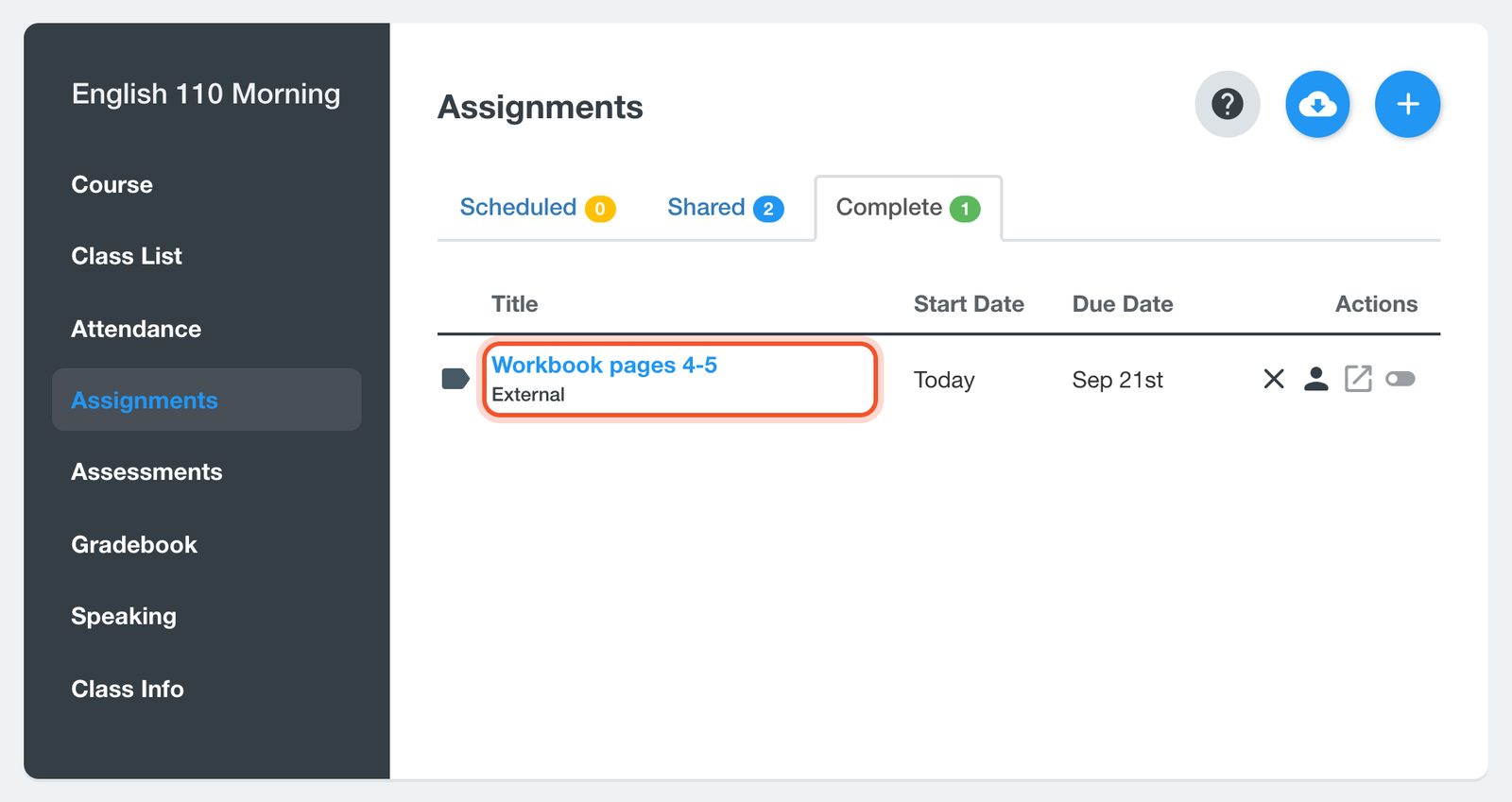
External work is listed on the Complete tab. Click its title, type each student's score on the Results tab and click Save.
What students see
- Once you save a score, the student sees it on their Assignments or Assessments page, marked External. Items without a score for that student are not shown to them.
- The scores also appear on the student's Progress page, which you open by clicking their name on the Class List, and in the transcript you can download there. External assessments set as Quiz are left out of the transcript.
To change the title, due date or maximum score, open the item and click the Settings tab. For an external assessment you can also change the Type there. To delete an item and all its scores, click the X at the end of its row.


