
School administration
Move a student to another class or remove them from a class
Add a student to their new class and remove them from the old one, from the student's Classes page.
There is no single move button. To move a student, add them to the new class, then remove them from the old one.
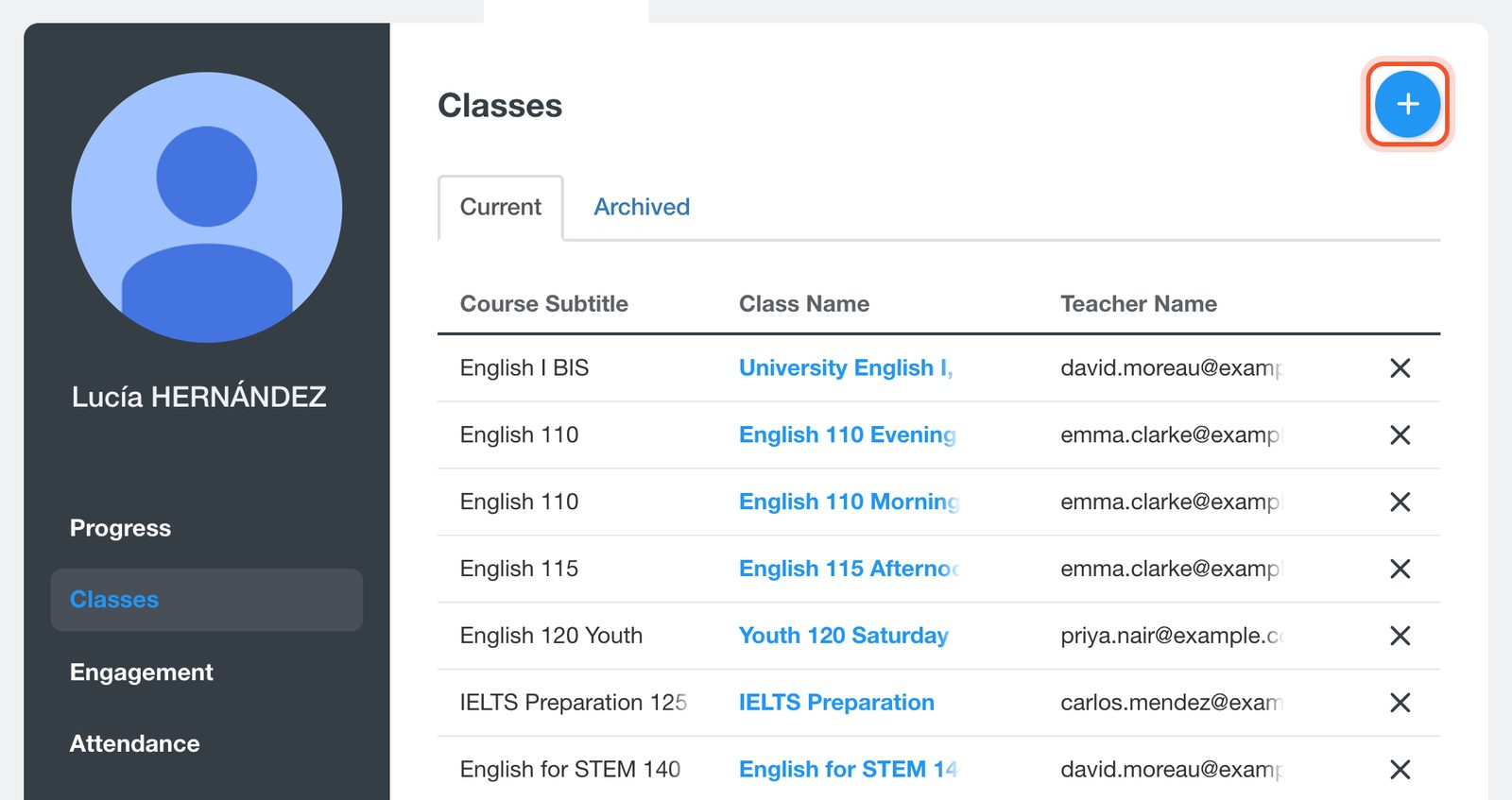
Open the Dashboard, click Students, open the student, then click Classes. Click the + (Add to a class) button.
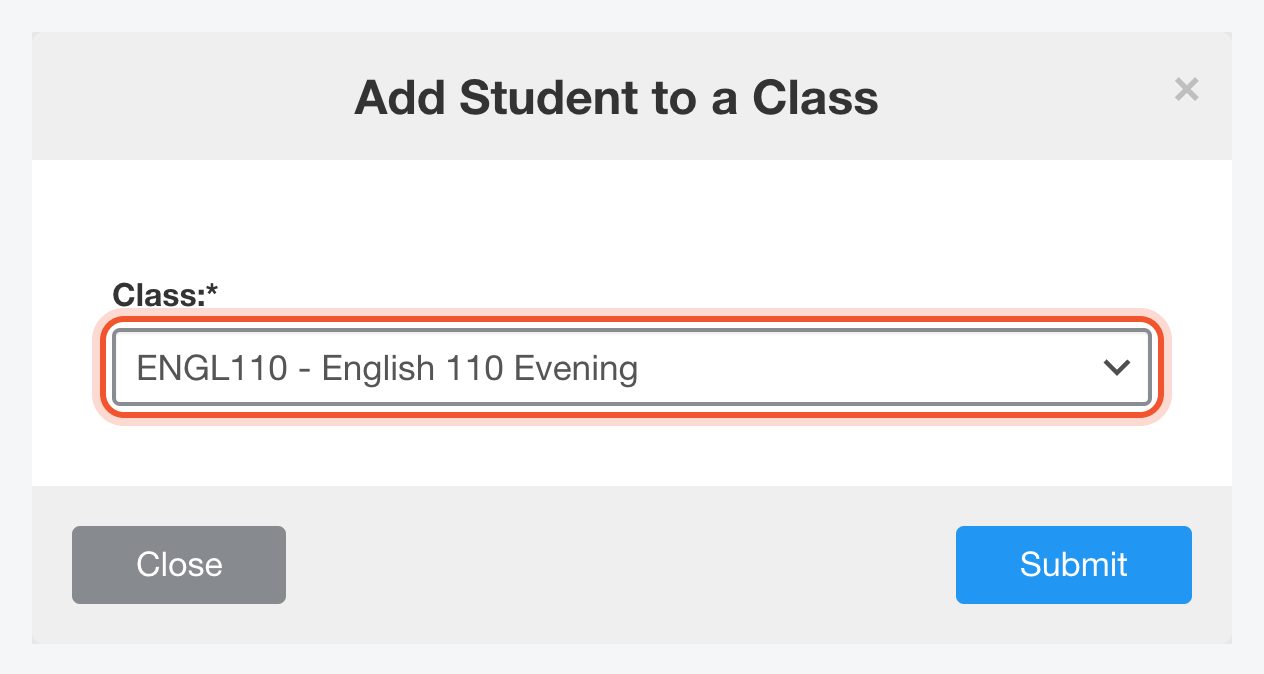
Choose the new Class and click Submit.
Under Current, click the X (Remove from Class) at the end of the old class's row.
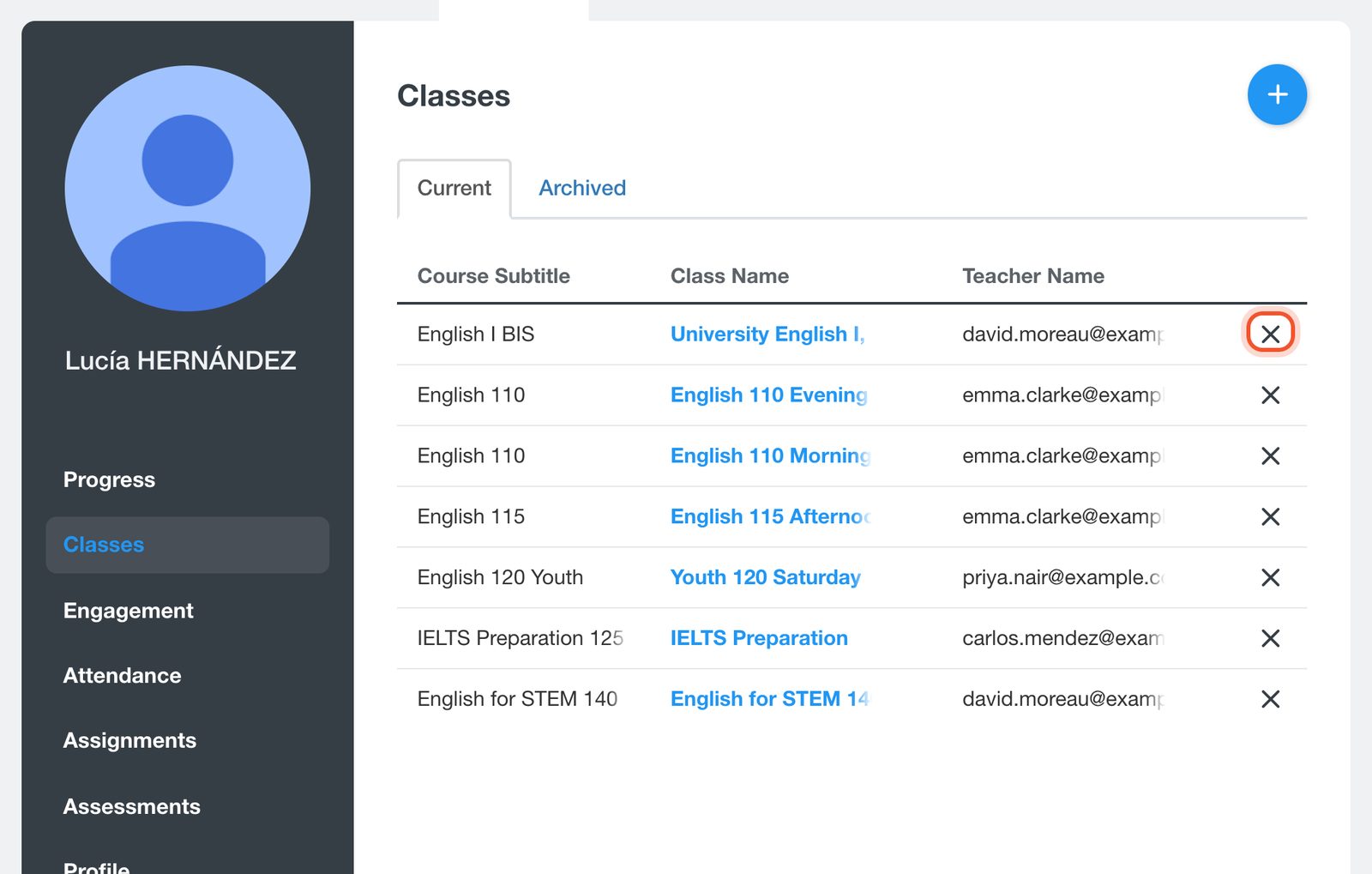
Removing a student takes them out of that class only. Their account stays in your school, with any other classes.
Remove several students from one class
Open the Dashboard, click Classes, open the class, then click Class List. Click the X at the end of a student's row, or tick several students and choose Remove under With Selected.
Put a removed student back
In the class's Class List, open the Removed tab and click the + beside the student. To restore several at once, tick them and choose Restore under With Selected.
Teachers can remove students from their own classes too. See Add students to your class.


