
Assignments, quizzes and grades
Set or change due dates and close work early
Move an assignment's or quiz's due date, remove it, or close the work for students before the date.
A due date closes the work at the end of that day, in your school's time zone. An assignment does not need a due date, but a quiz or exam always starts with one. You choose it when you share an exercise or start an assessment, and you can change it later.
Change an assignment's dates
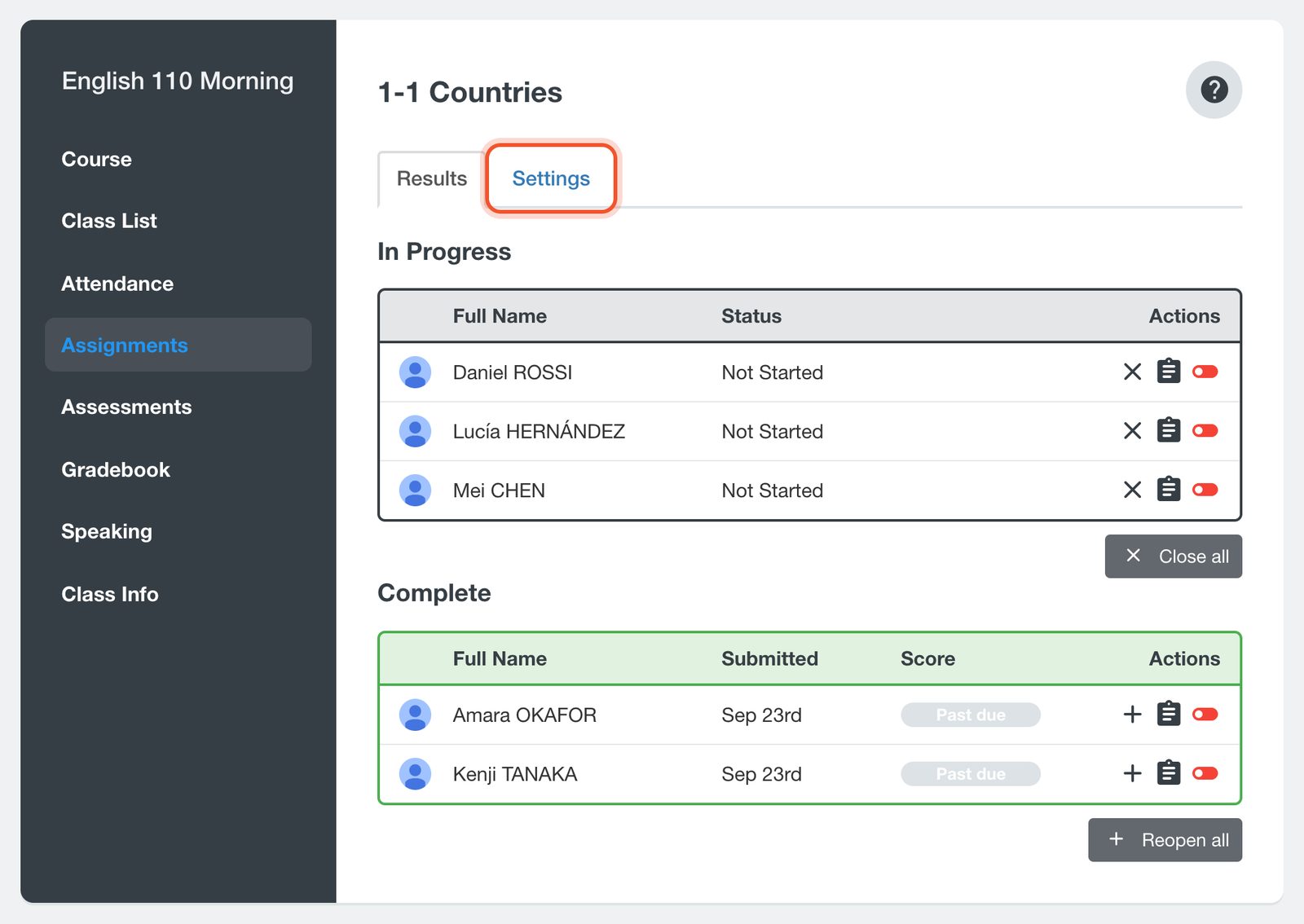
Open your class, click Assignments, then click the assignment's title. Click the Settings tab.
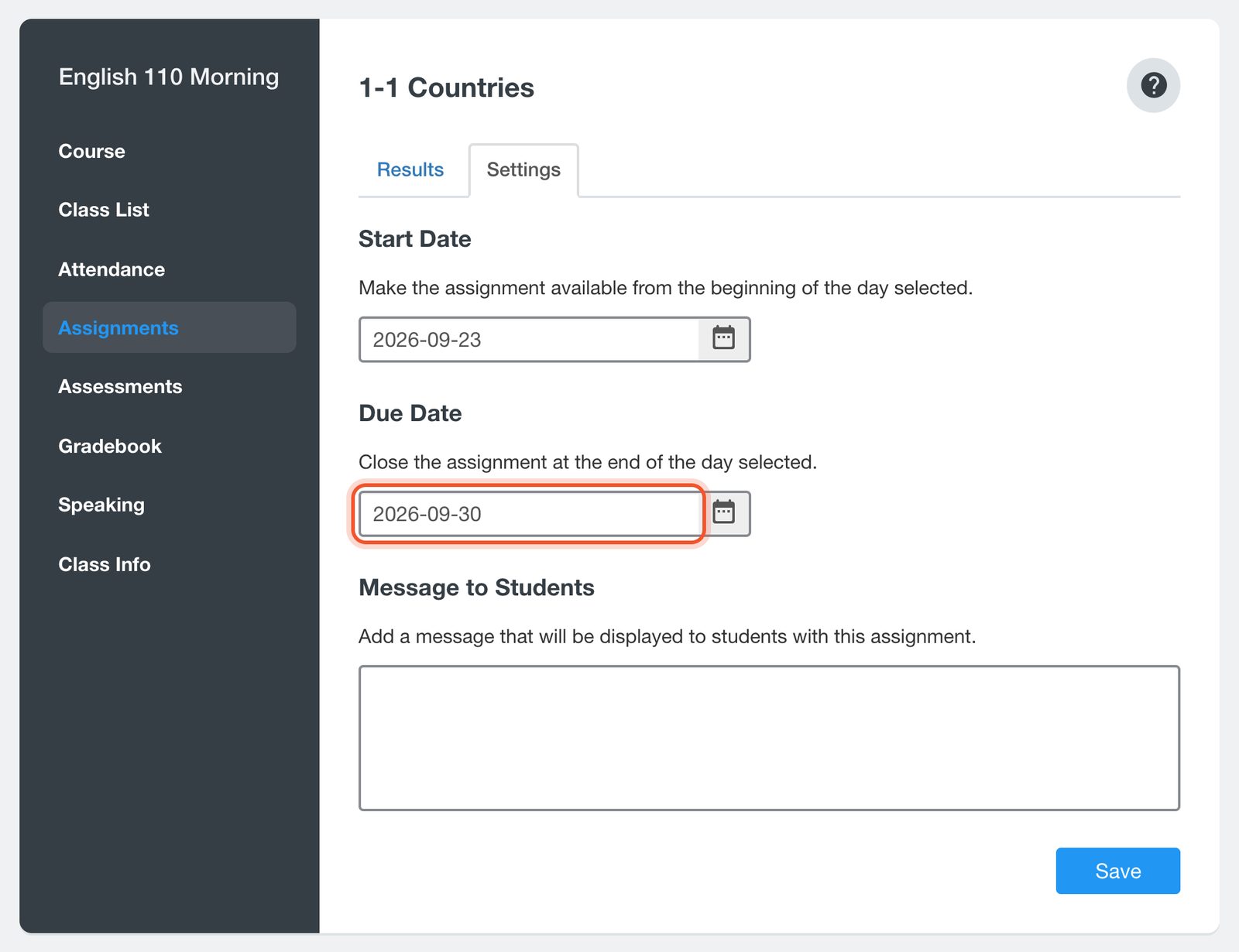
Choose a new Due Date, or clear it so the assignment stays open. You can also change the Start Date, the day students can start, and the Message to Students. Click Save.
A new due date does not reopen work that has already closed. To give those students more time, reopen the assignment for them.
Change a quiz's or exam's due date
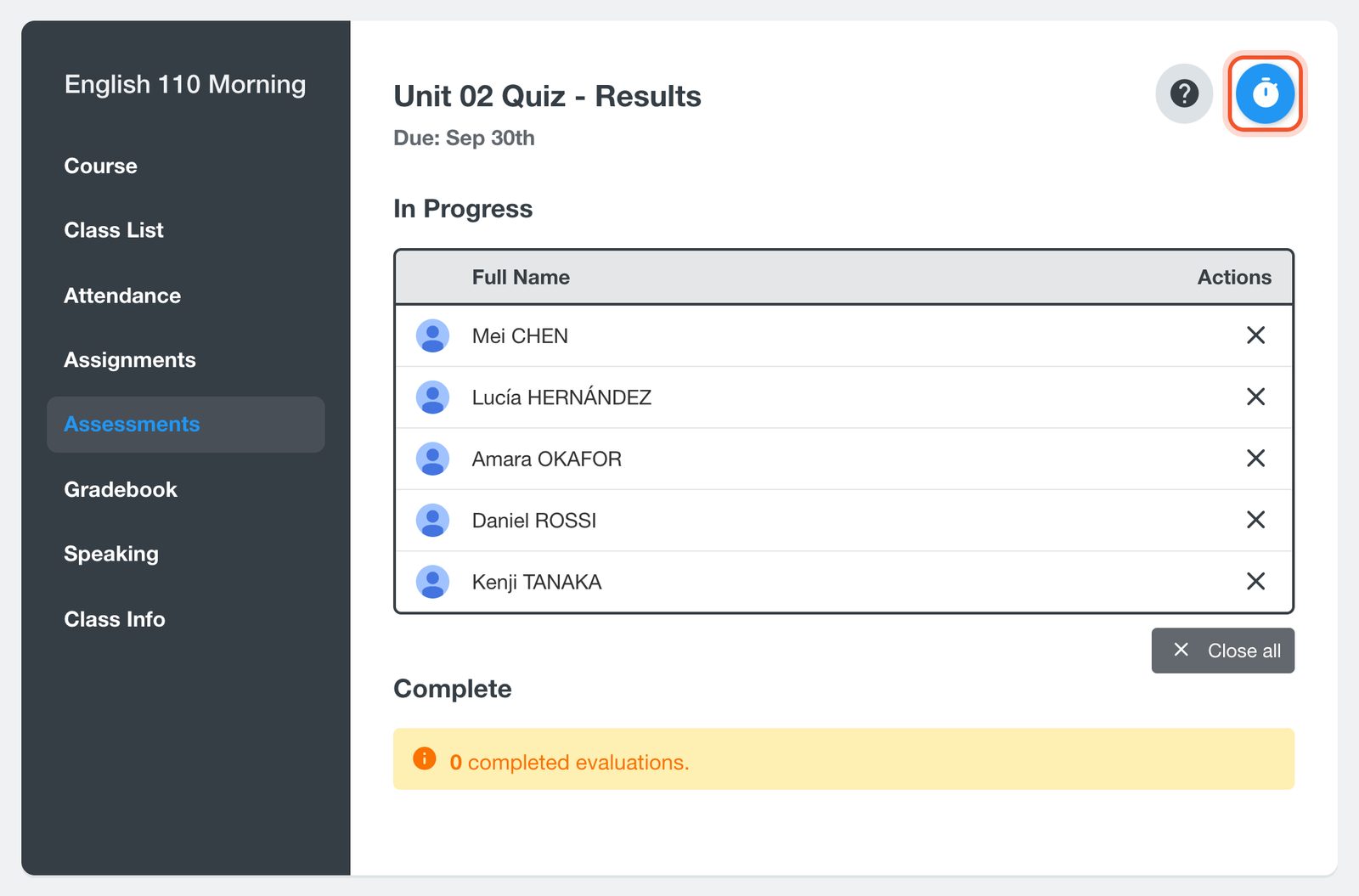
Open your class, click Assessments, then click the quiz or exam title. Click the Change Due Date button (the timer) at the top.
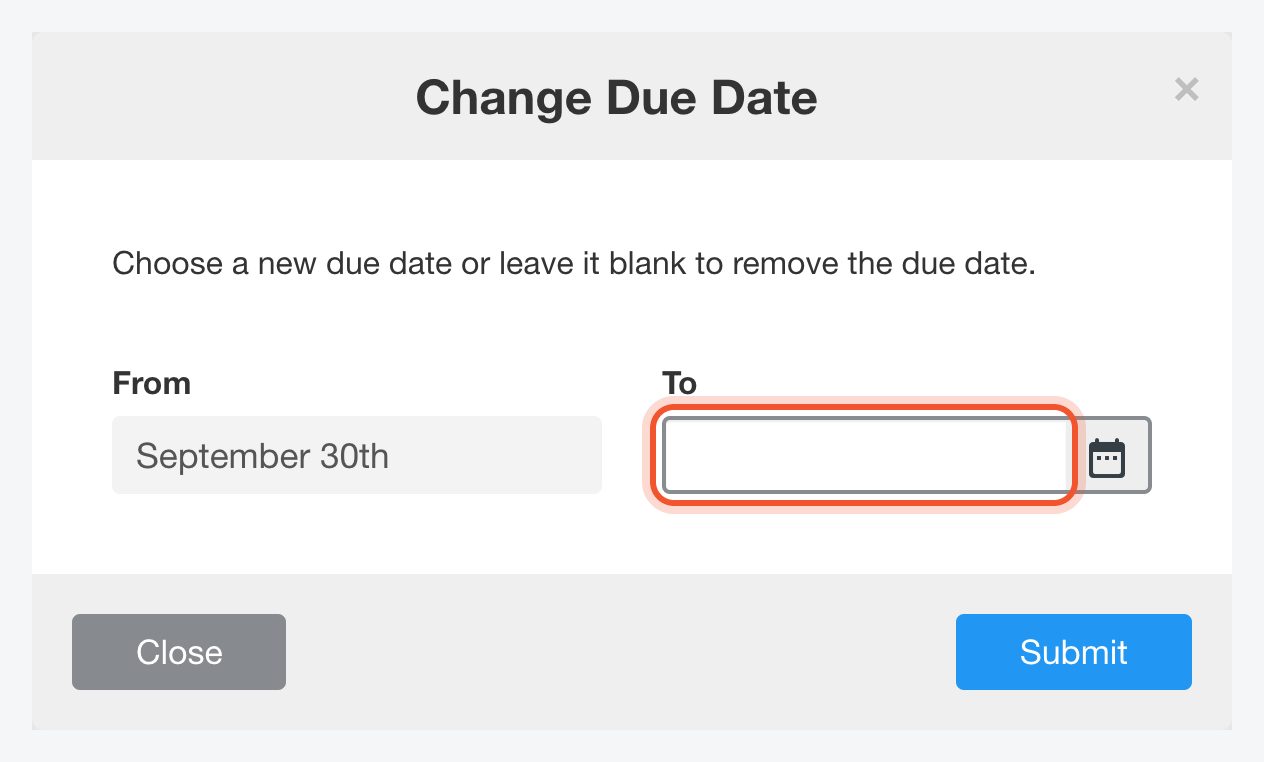
Choose the new date under To, or leave it blank to remove the due date. Click Submit. Students who have not submitted yet can keep working until the new date.
The Change Due Date button is there for 7 days after you start the quiz or exam, while it is still in progress. If the quiz or exam has no due date, the button is called Add Due Date.
Close work early
Open the assignment's or assessment's results as above. Students who have not finished are listed under In Progress.
To close the work for one student, click the Close button (the X) on their row. To close it for everyone under In Progress, click Close all, then Yes.
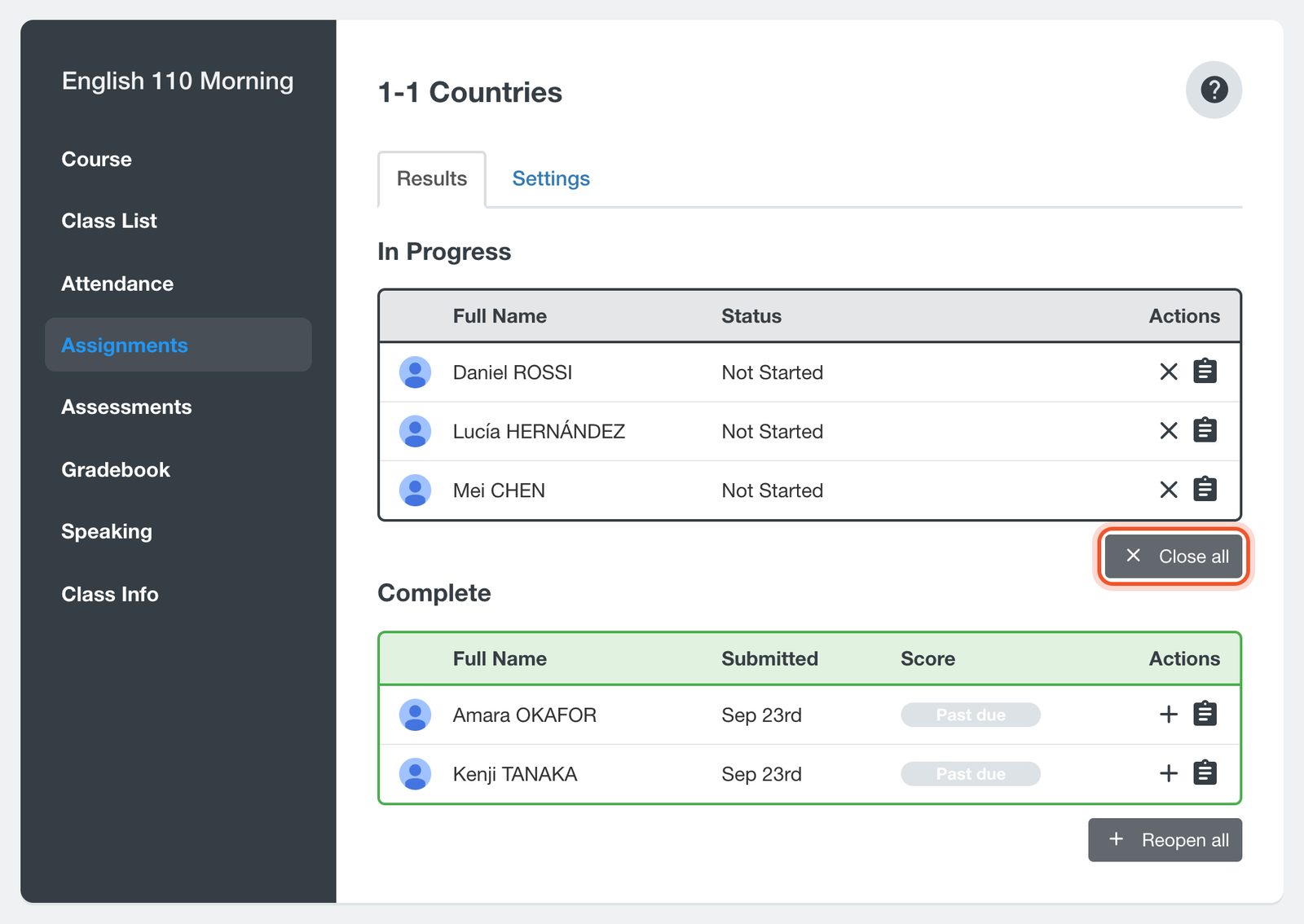
Closed work moves to Complete. If the student had not submitted it, their score shows Past due. You can reopen it later if you need to.


